The Tenant Management section is your go-to resource for everything related to managing tenants in Spacewise.
Whether you're inviting new tenants, creating tenant groups, sending offers, or managing pre-paid bookings, you'll find step-by-step guides and best practices here. Feel free to return to this section anytime you need a refresher or want to explore additional features.
Interactive Product Tour
Prefer a visual walkthrough? Explore Tenant Management in the interactive demo, then use the articles underneath whenever you need more detailed guidance.
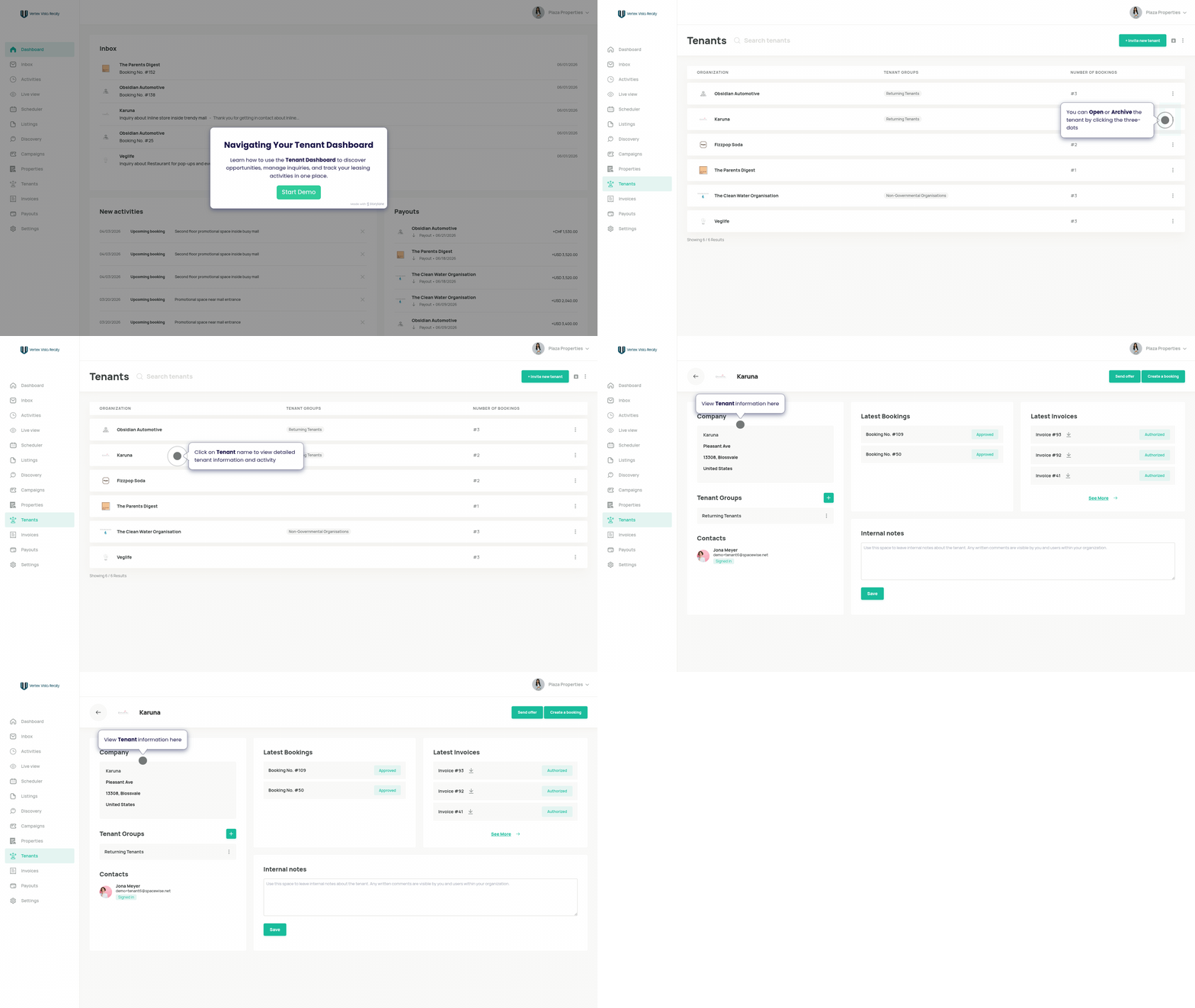
Navigating Your Tenant Dashboard
This walkthrough demonstrates how to use the Tenant Dashboard to manage tenant relationships and leasing activities. Users learn to view tenant lists, access detailed tenant information including bookings and invoices, and add internal notes. The training covers two key workflows: sending lease offers to tenants through selected channels and manually creating bookings, with both processes resulting in trackable booking statuses and conversation threads for ongoing tenant communication.
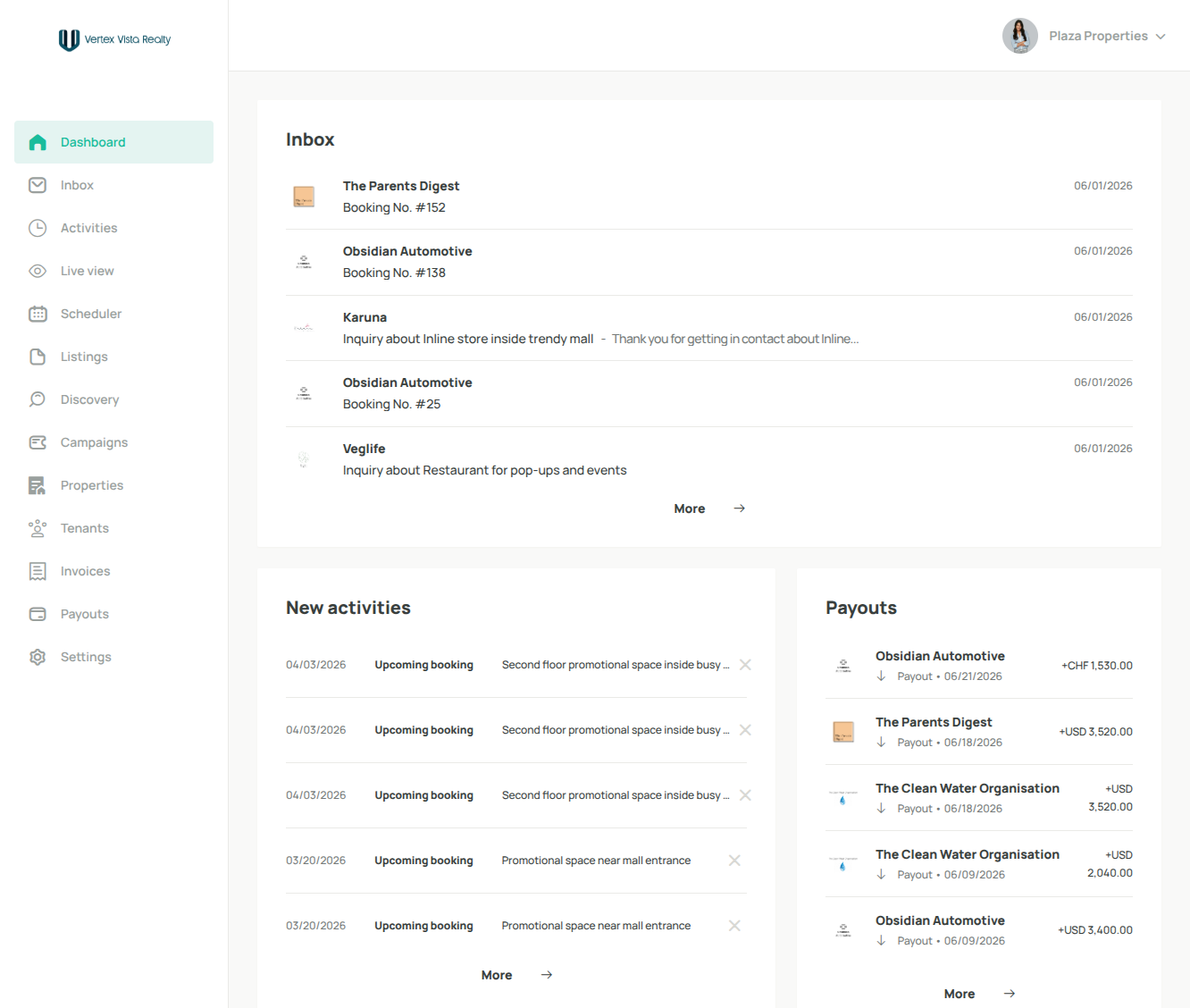
1. Navigating Your Tenant Dashboard
Learn how to use the Tenant Dashboard to discover opportunities, manage inquiries, and track your leasing activities in one place.
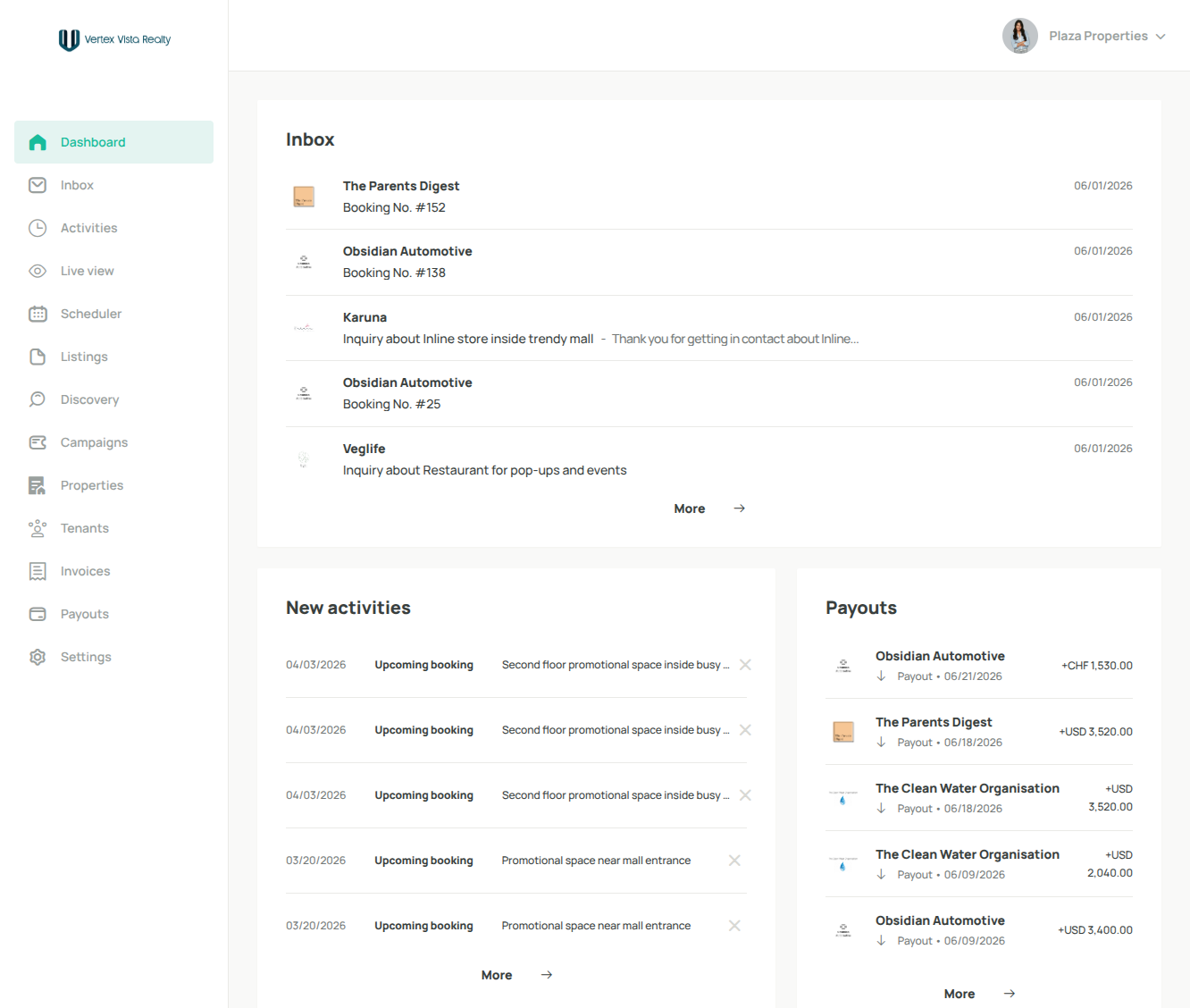
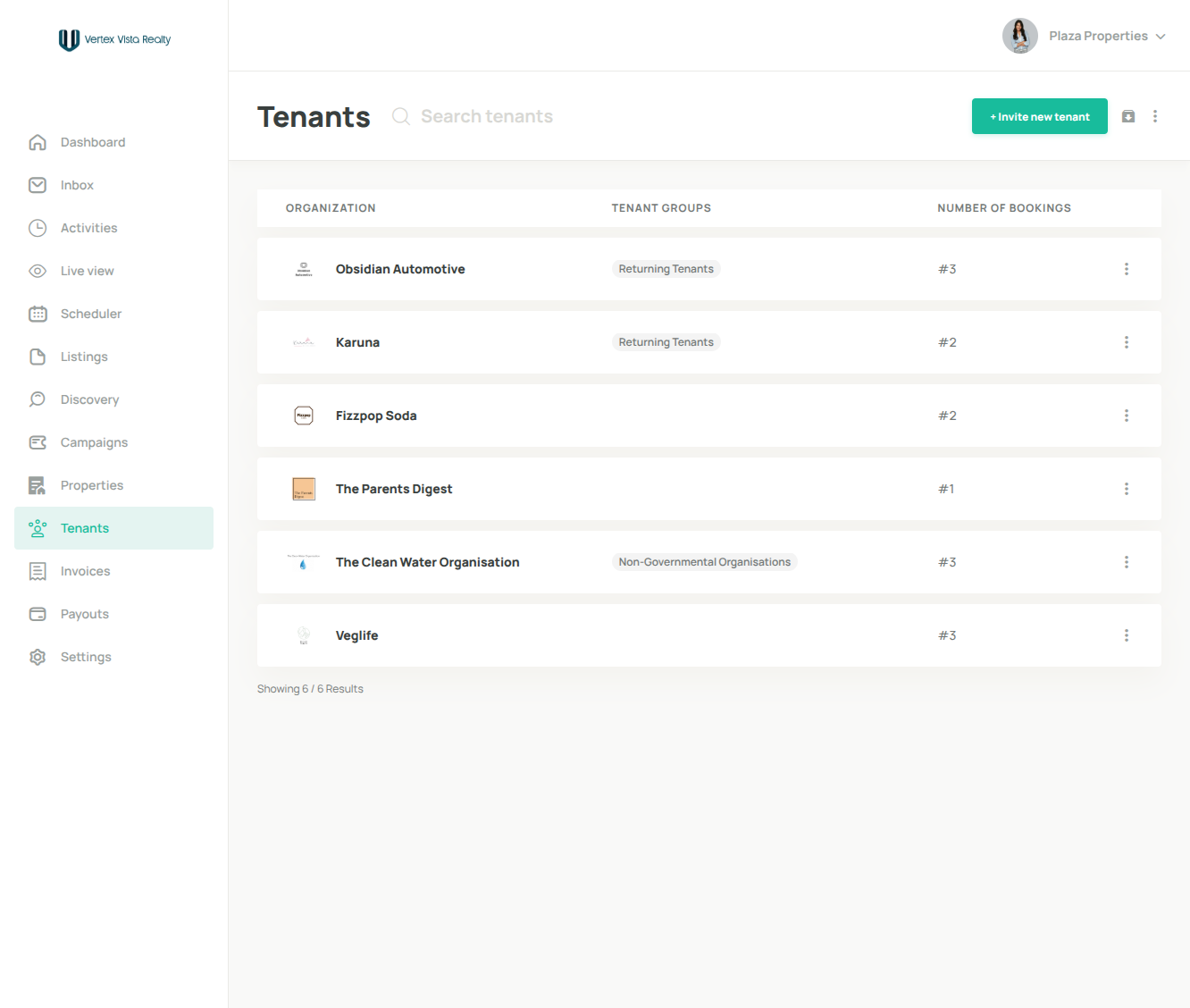
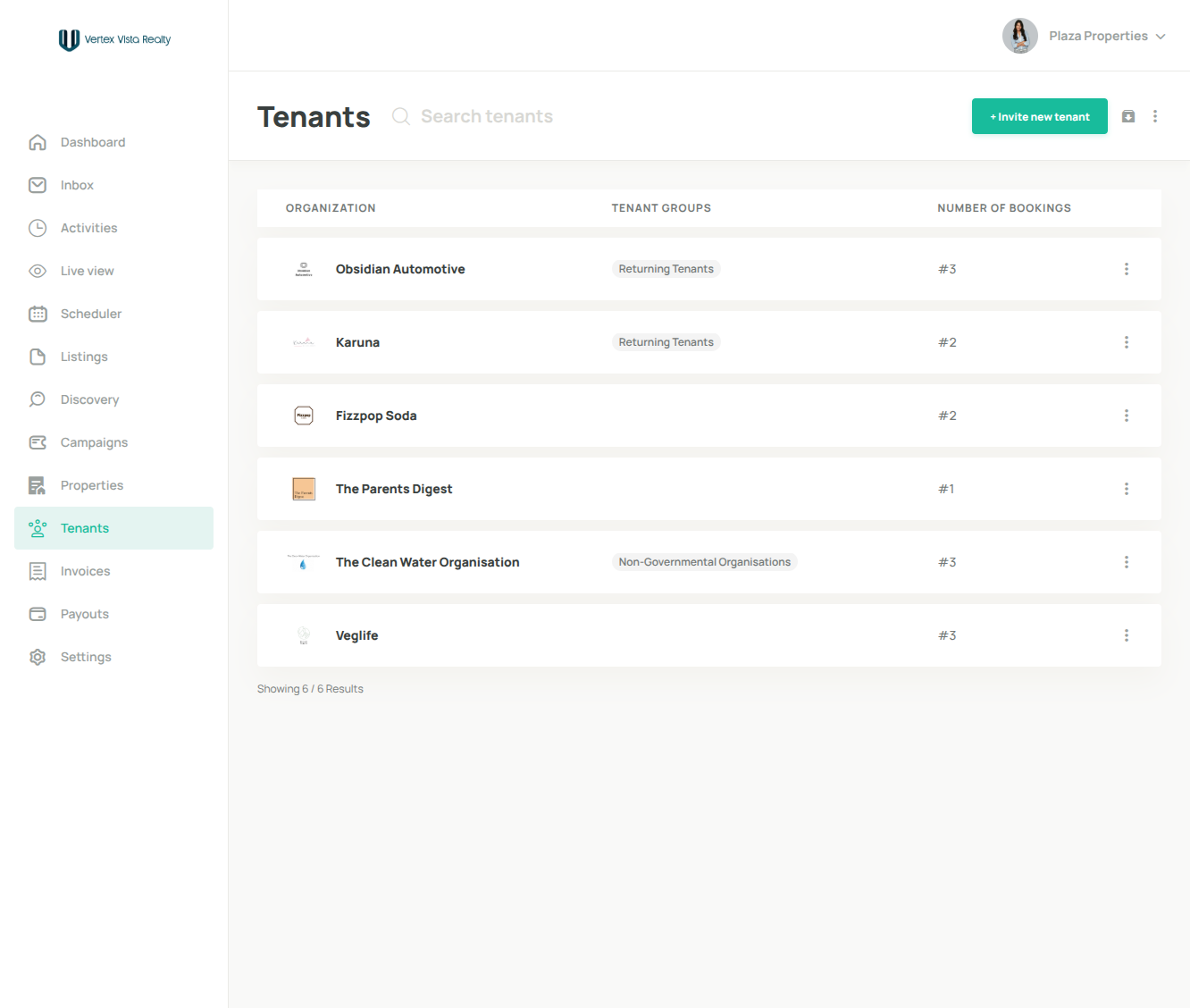
2. Navigate to Tenants to view and manage your tenant list.
3. You can Open or Archive the tenant by clicking the three-dots
4. Click on Tenant name to view detailed tenant information and activity
5. View Tenant information here
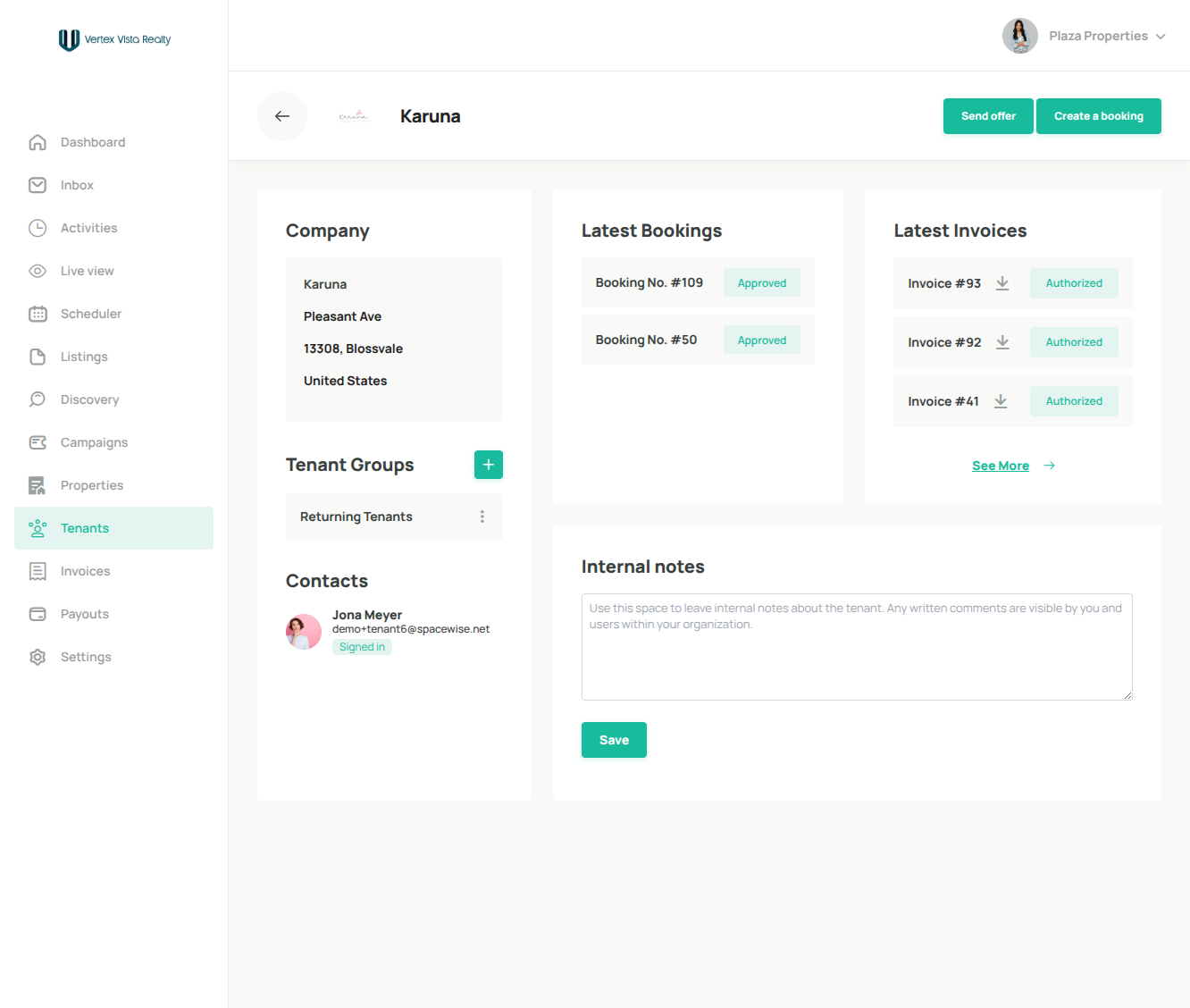
6. Manage Tenant Groups here
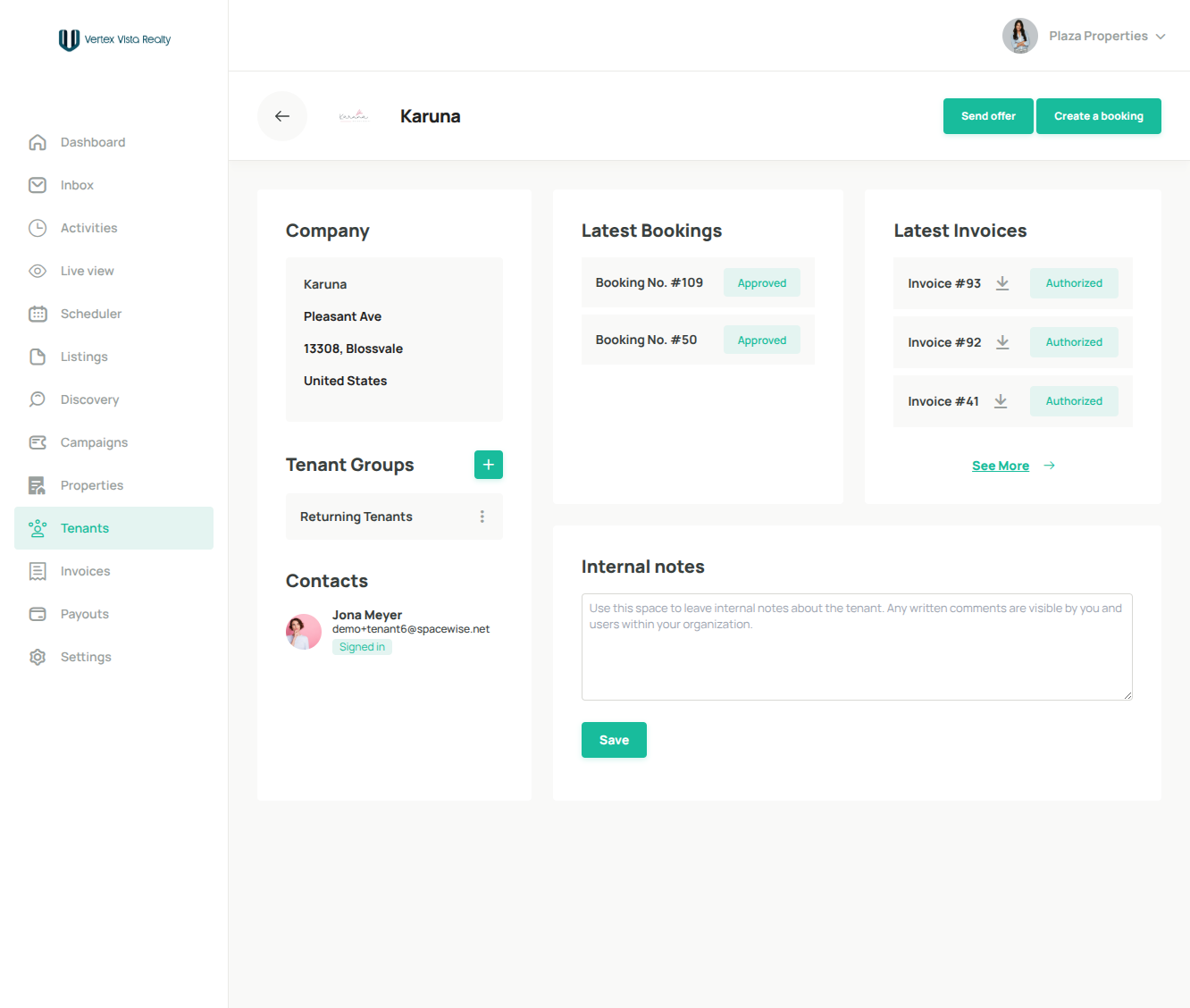
7. View tenant account details and signed-in status
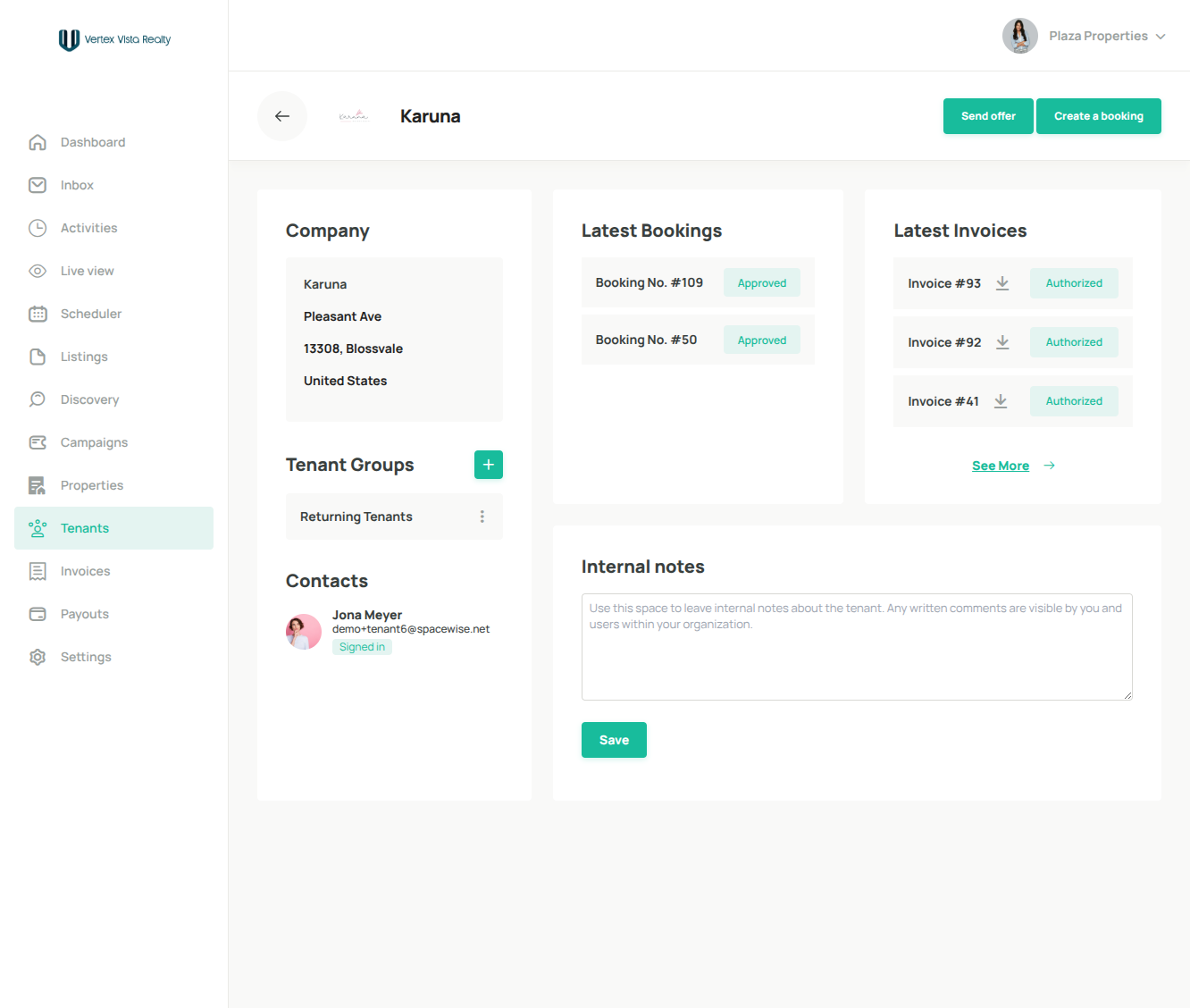
8. Tenant's booking summary
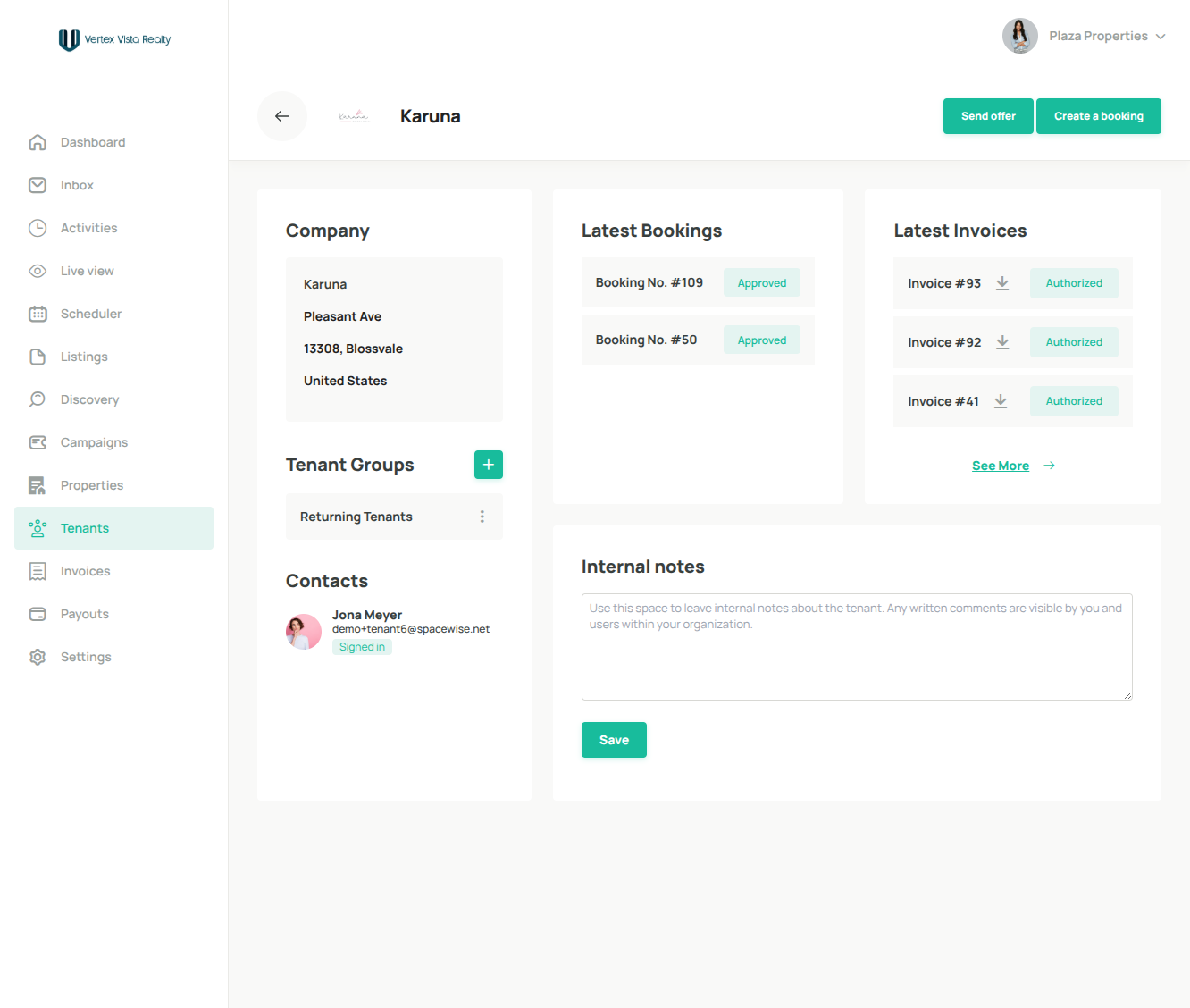
9. Review tenant invoices and track payment activity
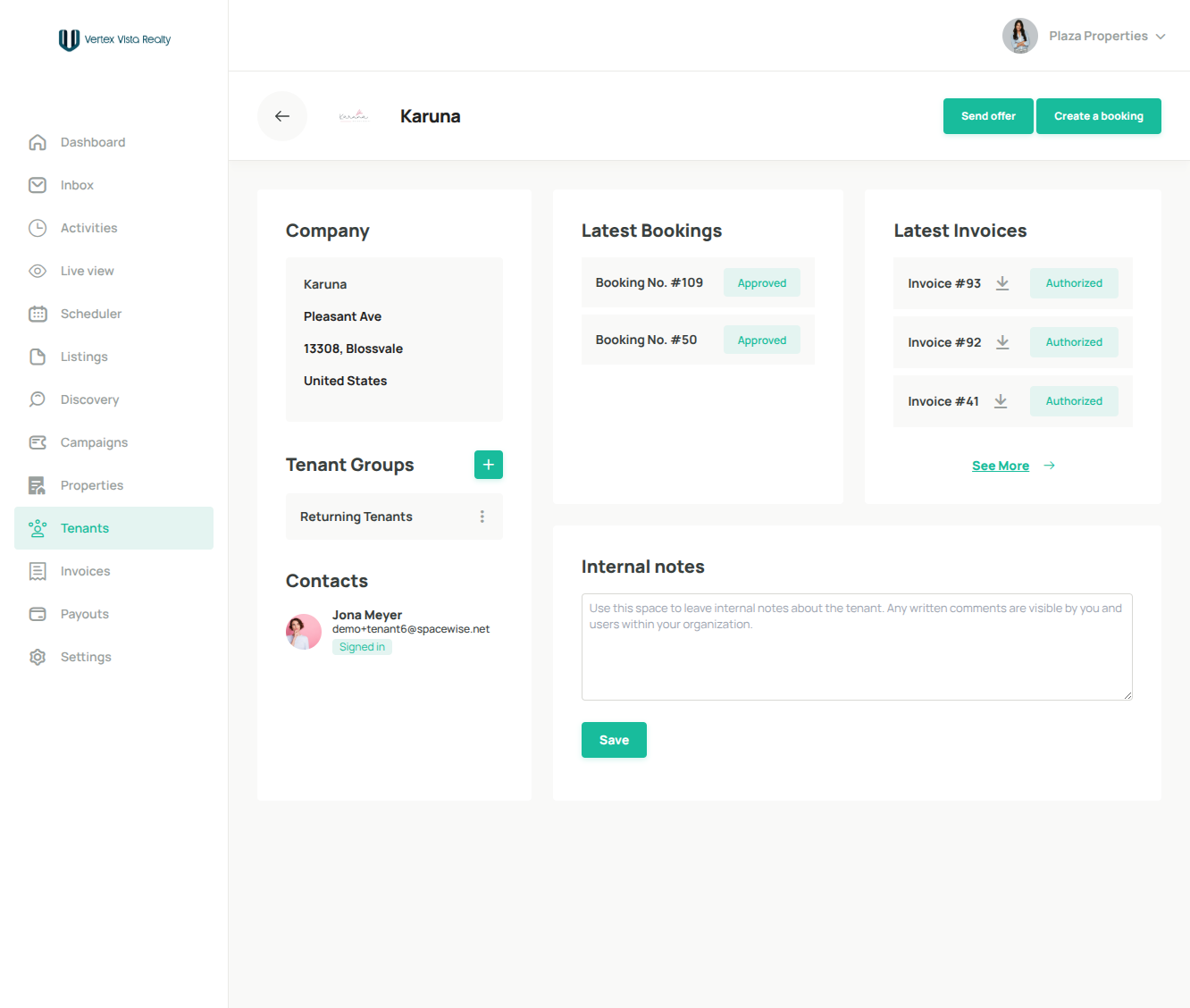
10. Use this section to add internal notes about the tenant. Notes are only visible to users within your organization.
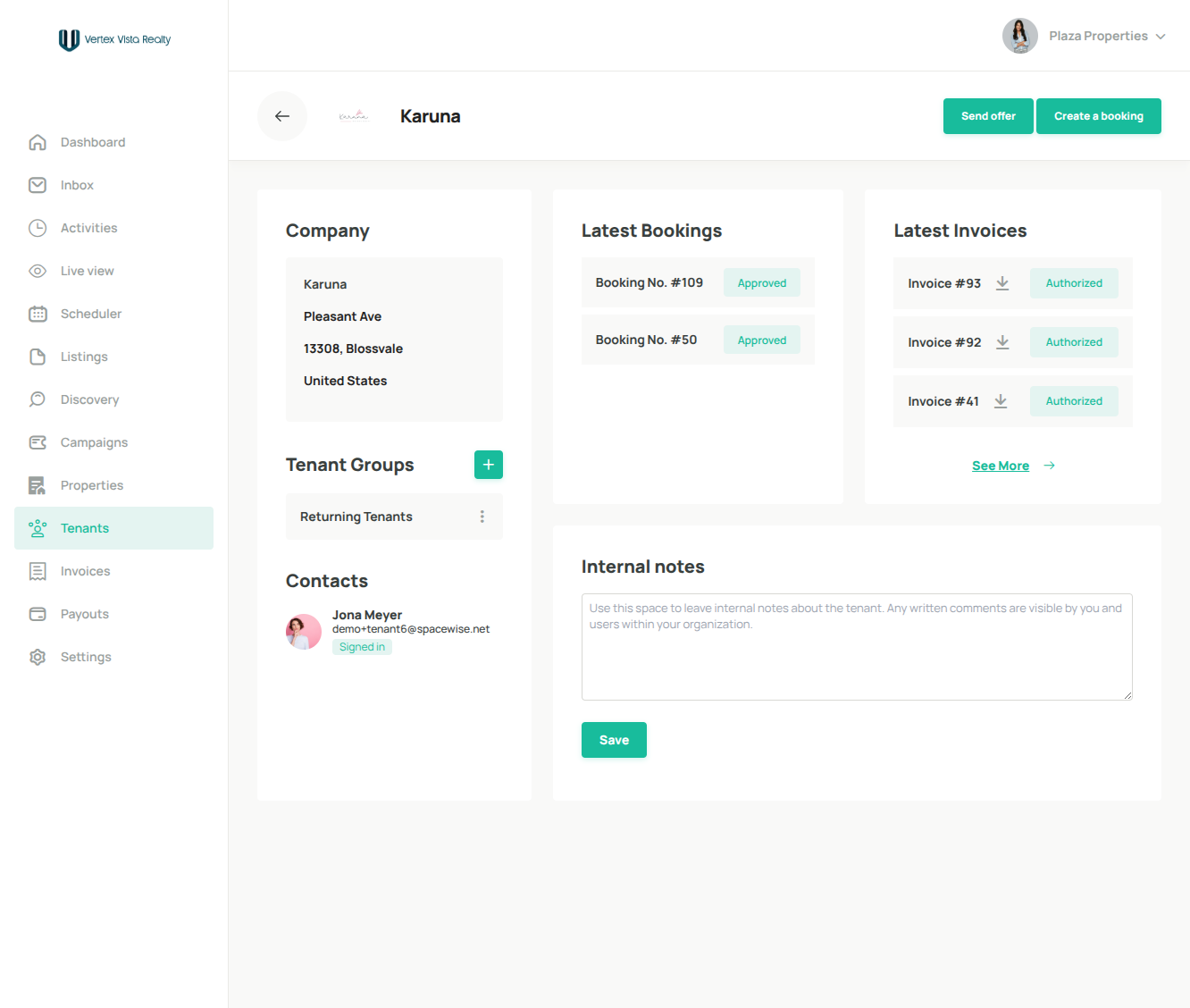
11. Click Send offer to create and send a lease offer to the tenant
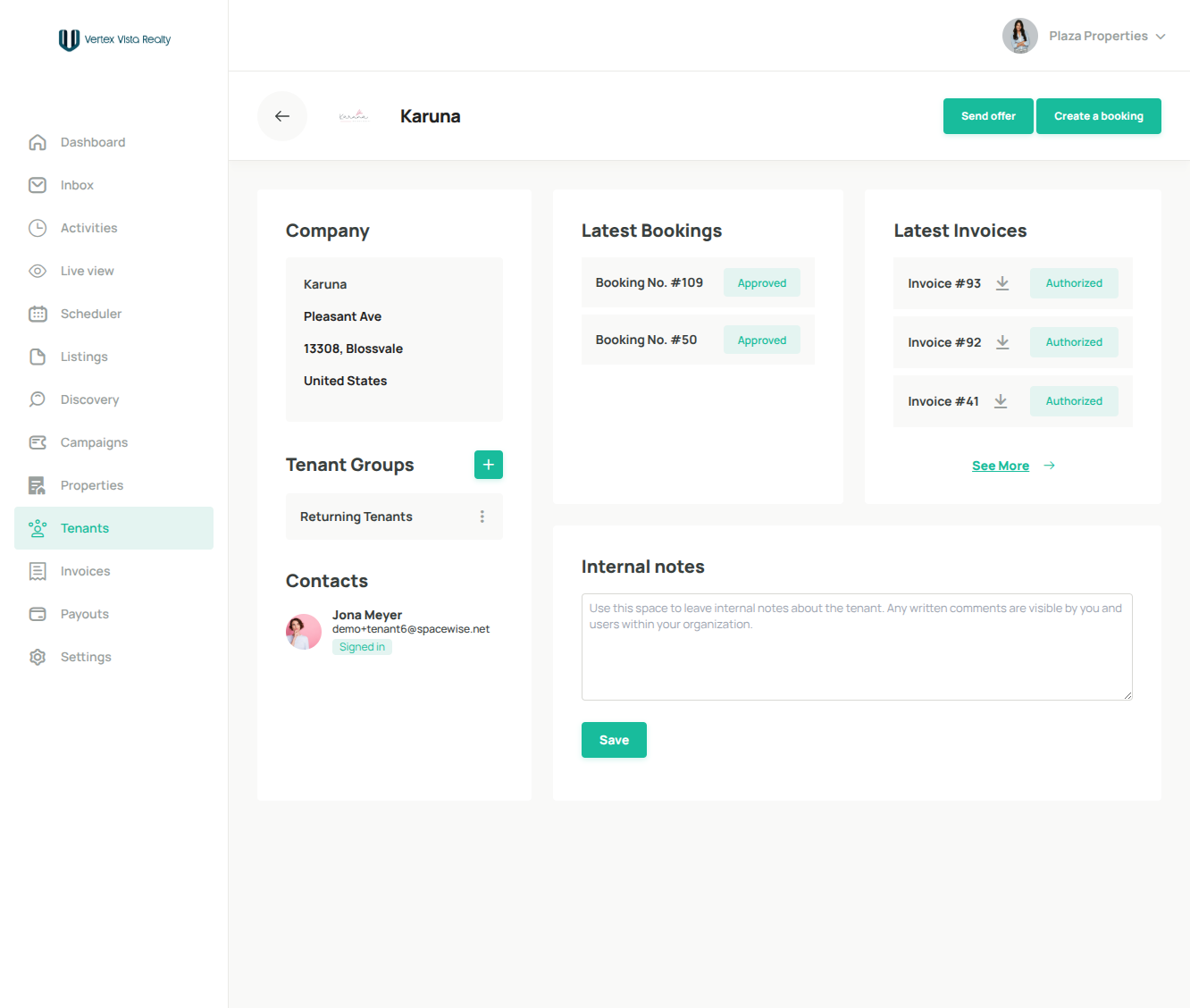
12. Choose Offer to proceed with the offer flow
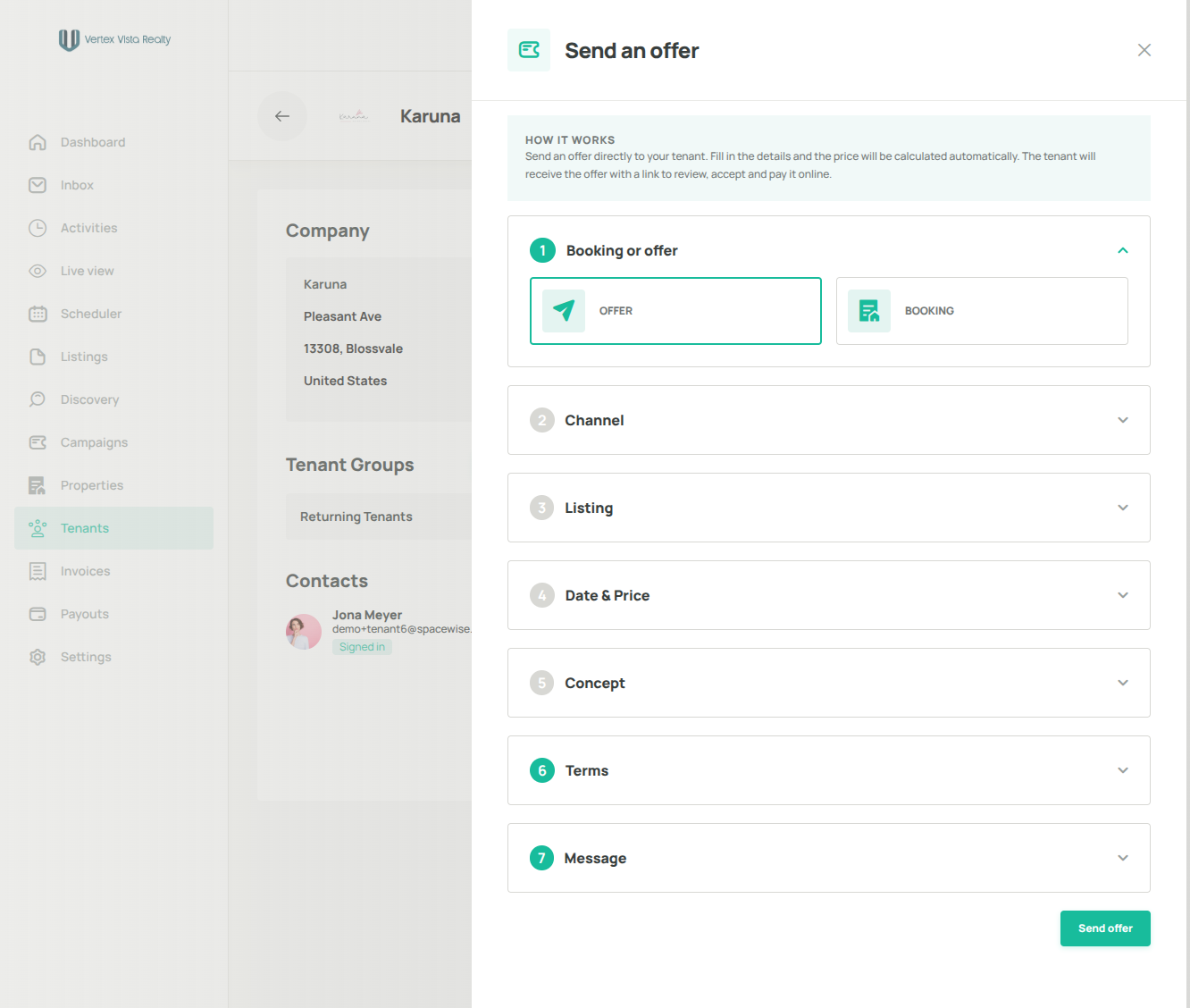
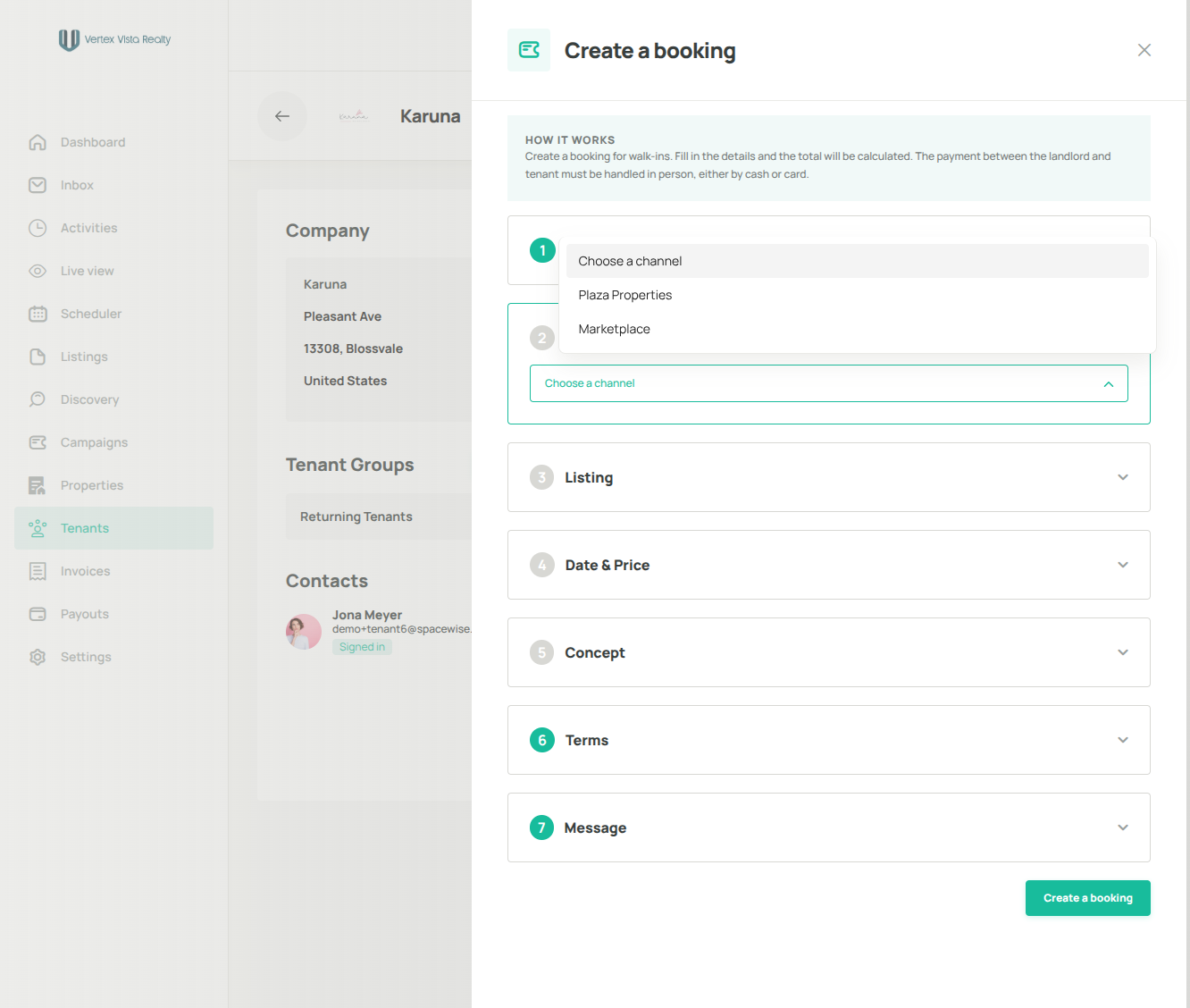
13. Click Choose a channel to select where this offer will be listed
14. Let's select the branded site (white label) for this offer
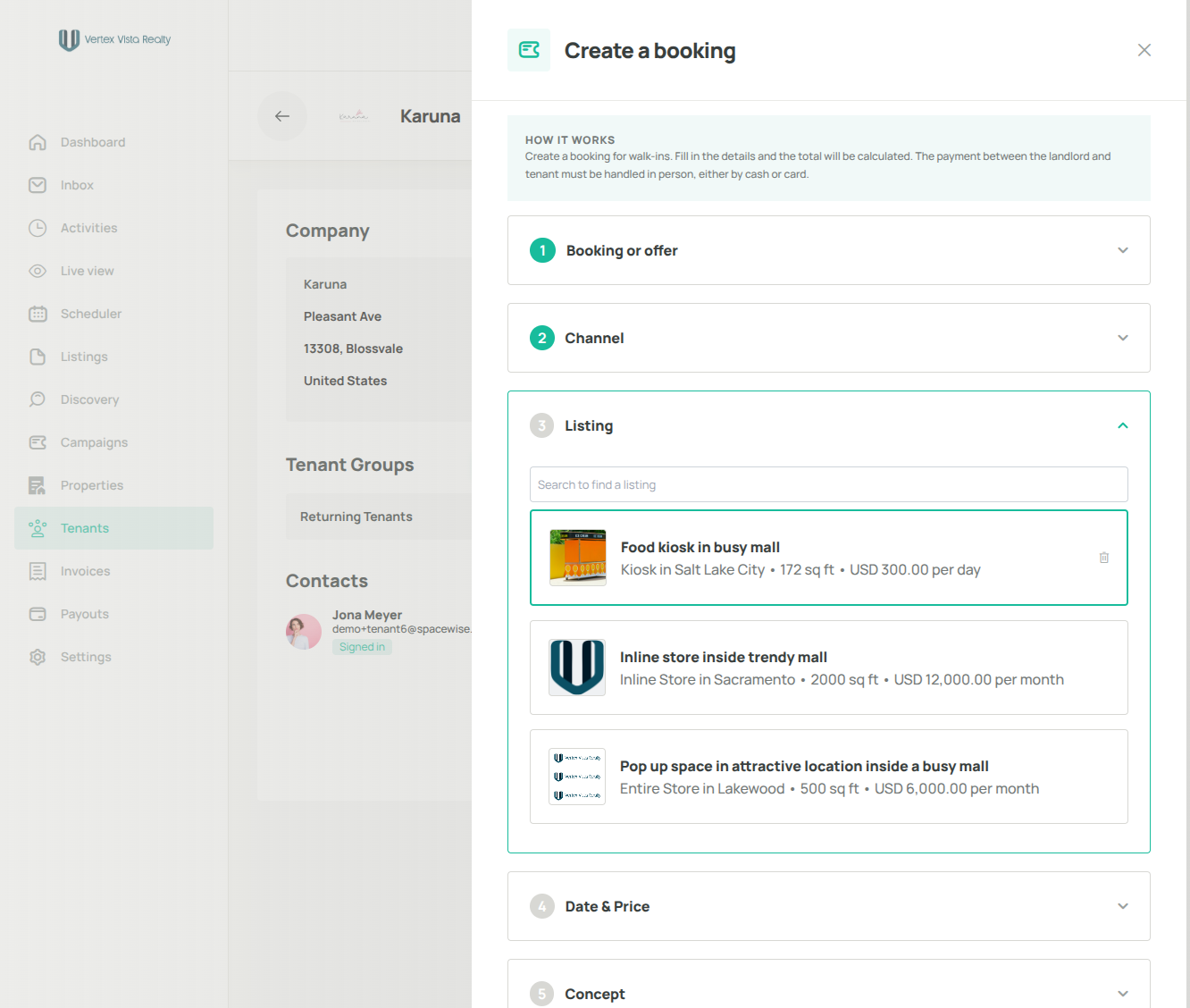
15. Select the listing you want to make an offer with
16. Select start and end dates
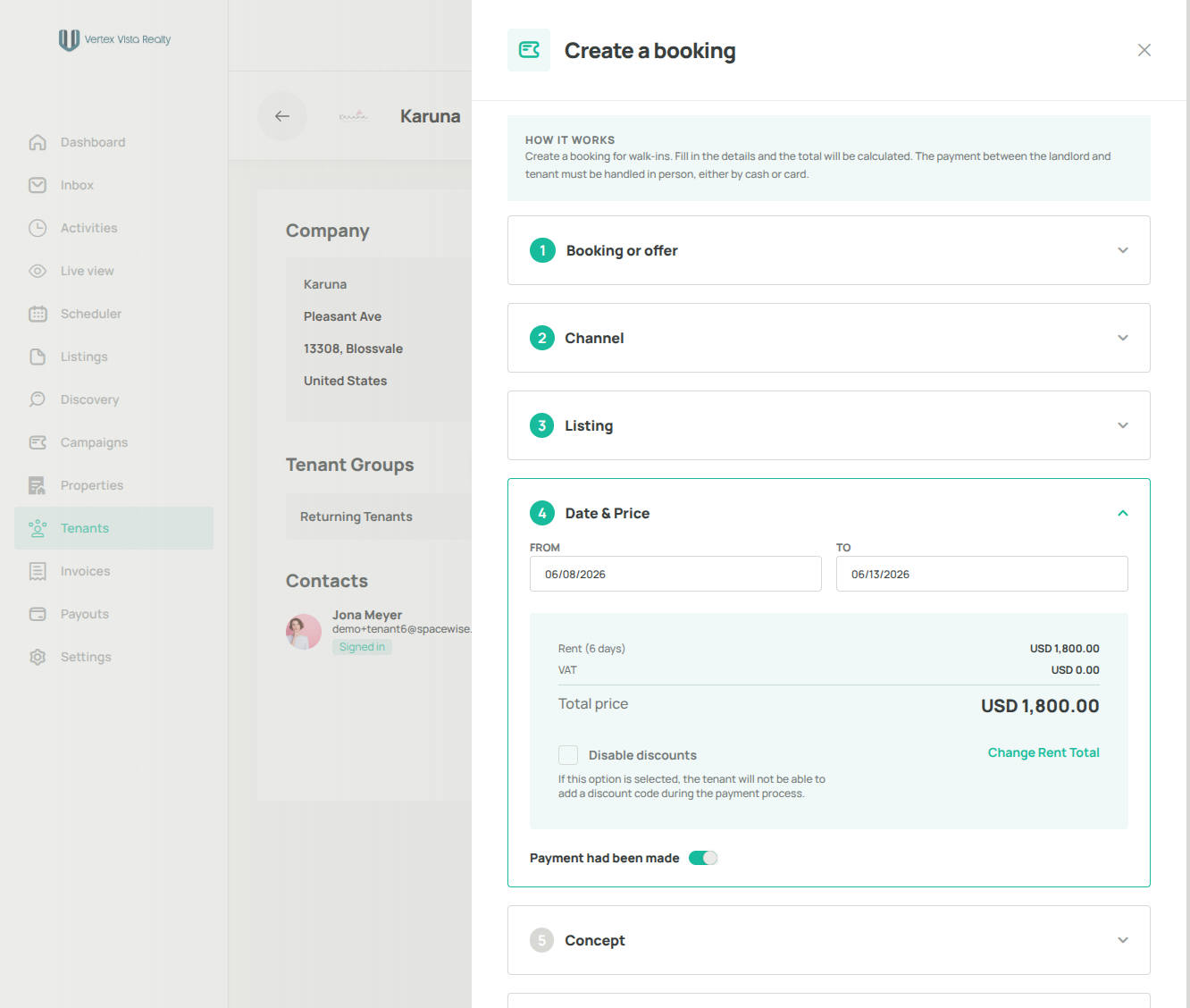
17. Select your concept type and provide details about your business and offering.
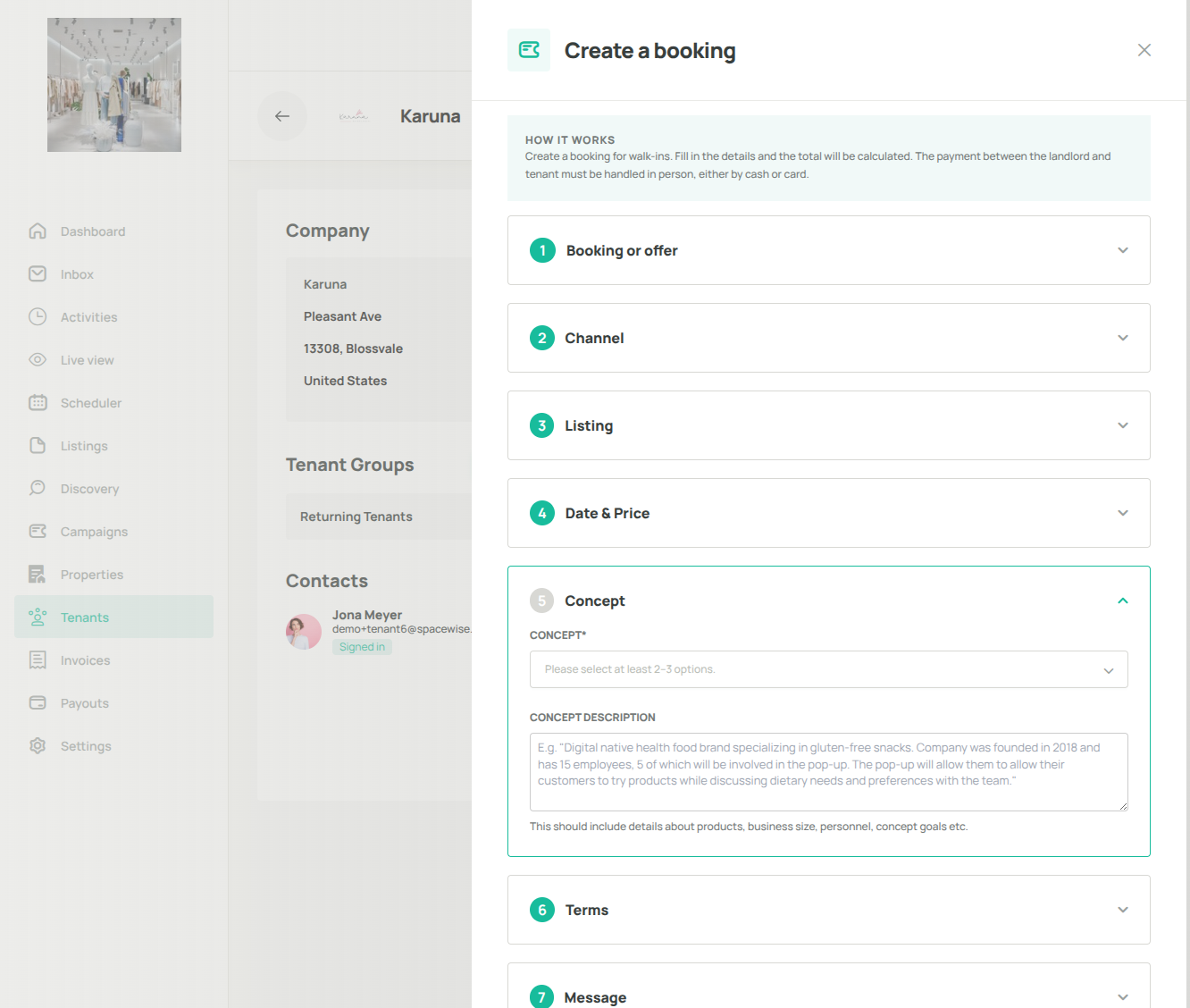
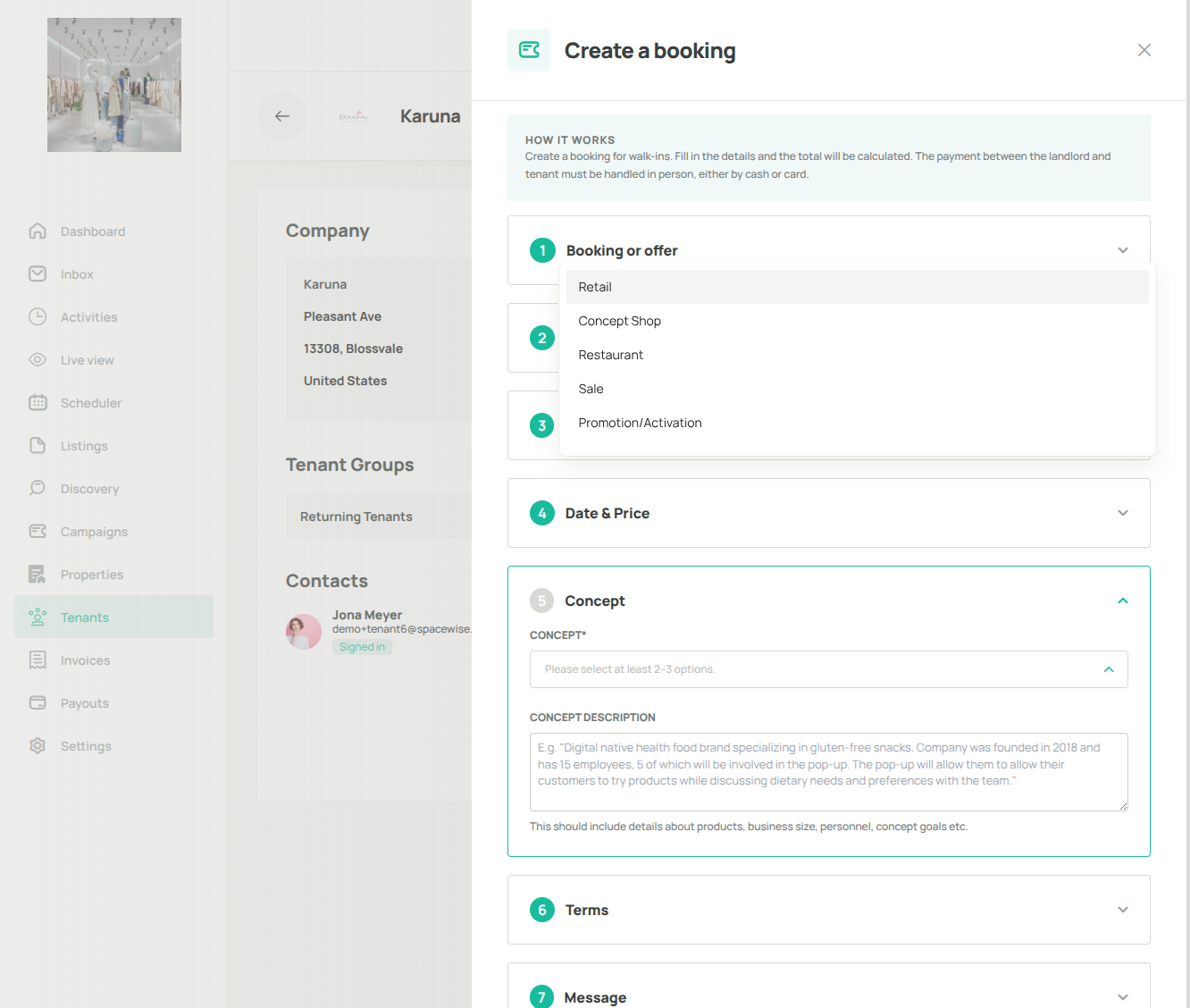
18. Select a concept type from the dropdown
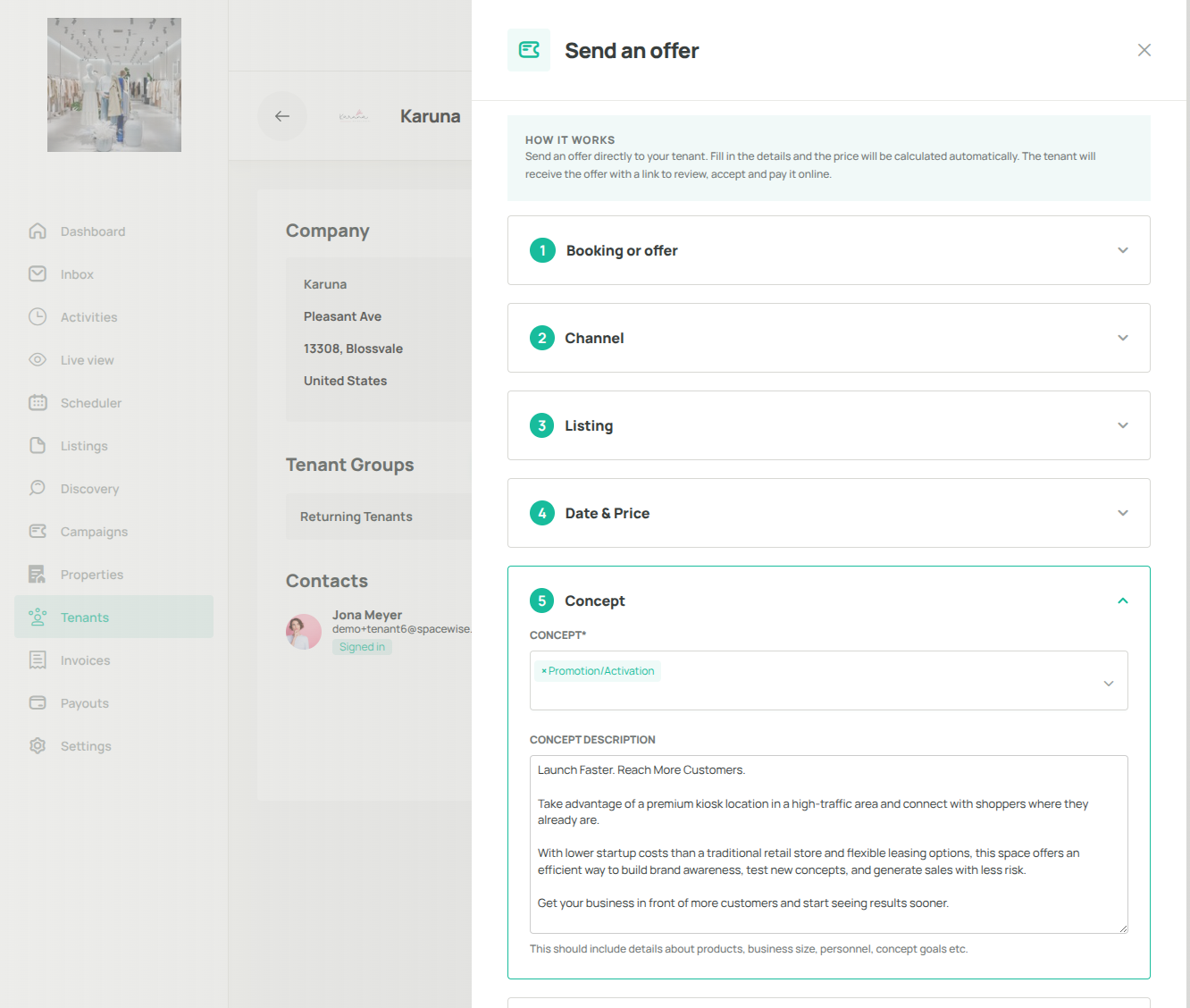
19. Provide a summary of your business concept, products, and objectives.
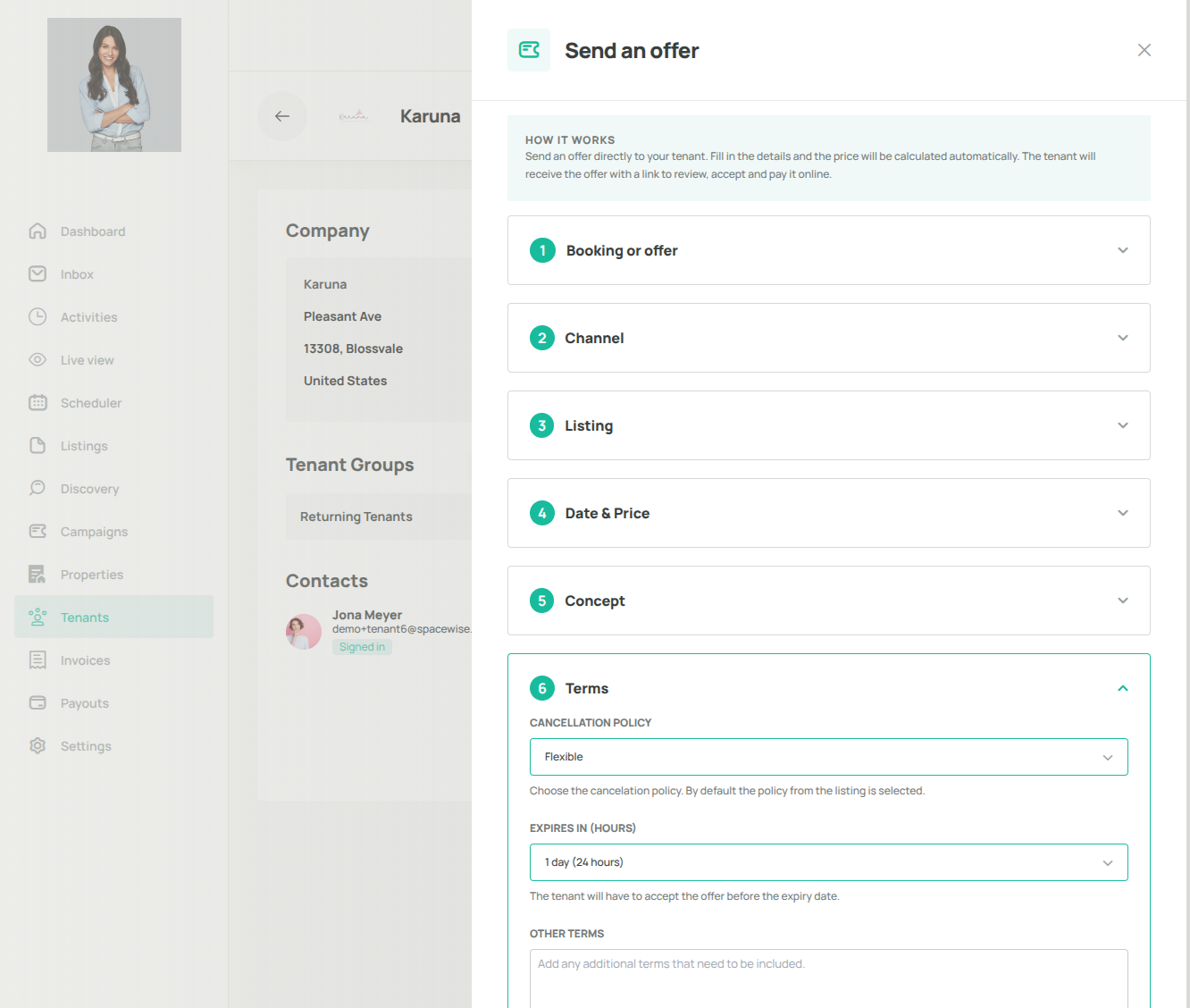
20. Define the offer terms, cancellation policy type, offer availability period, and any additional conditions.
21. Add a message to provide context or additional details for the tenant
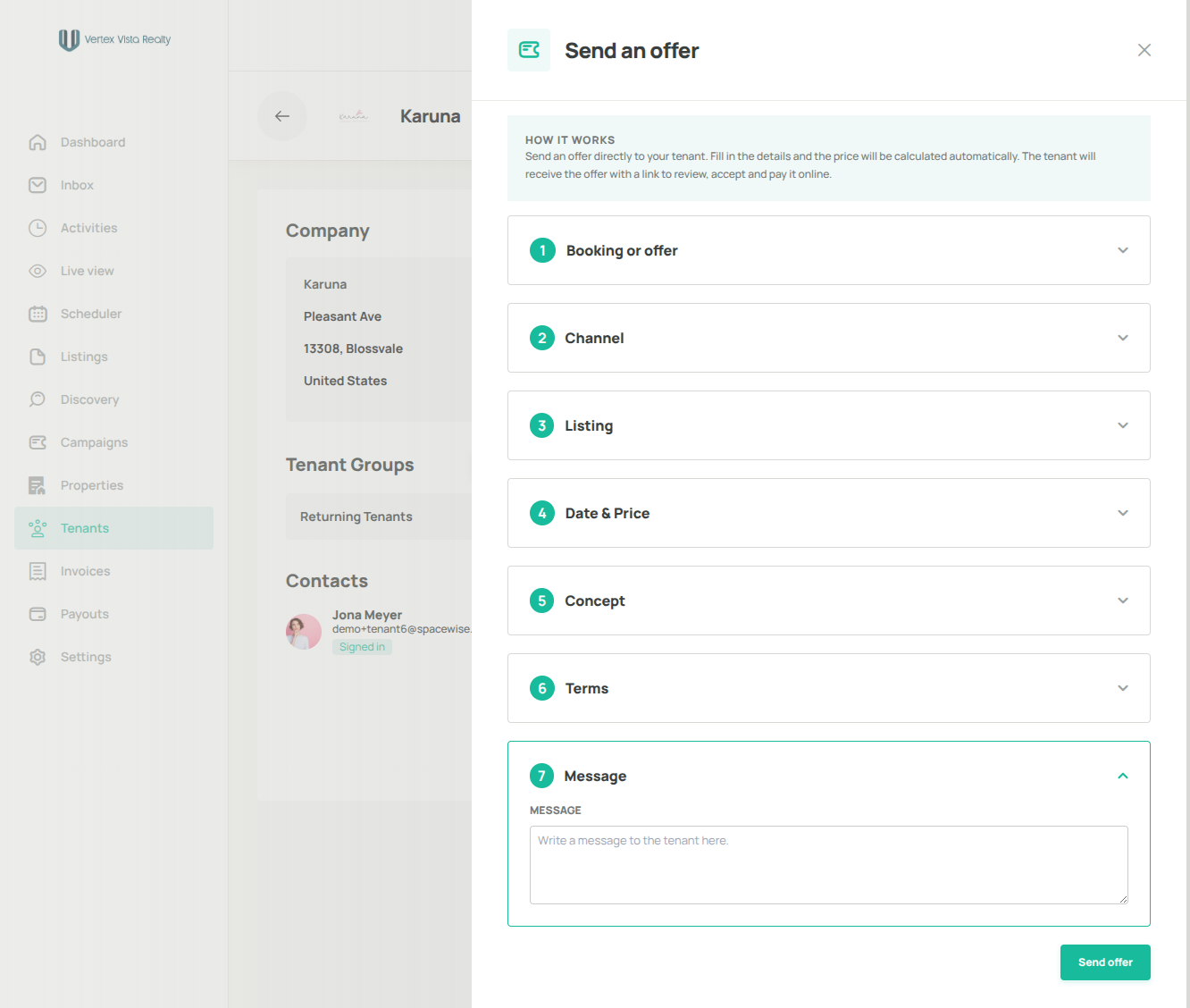
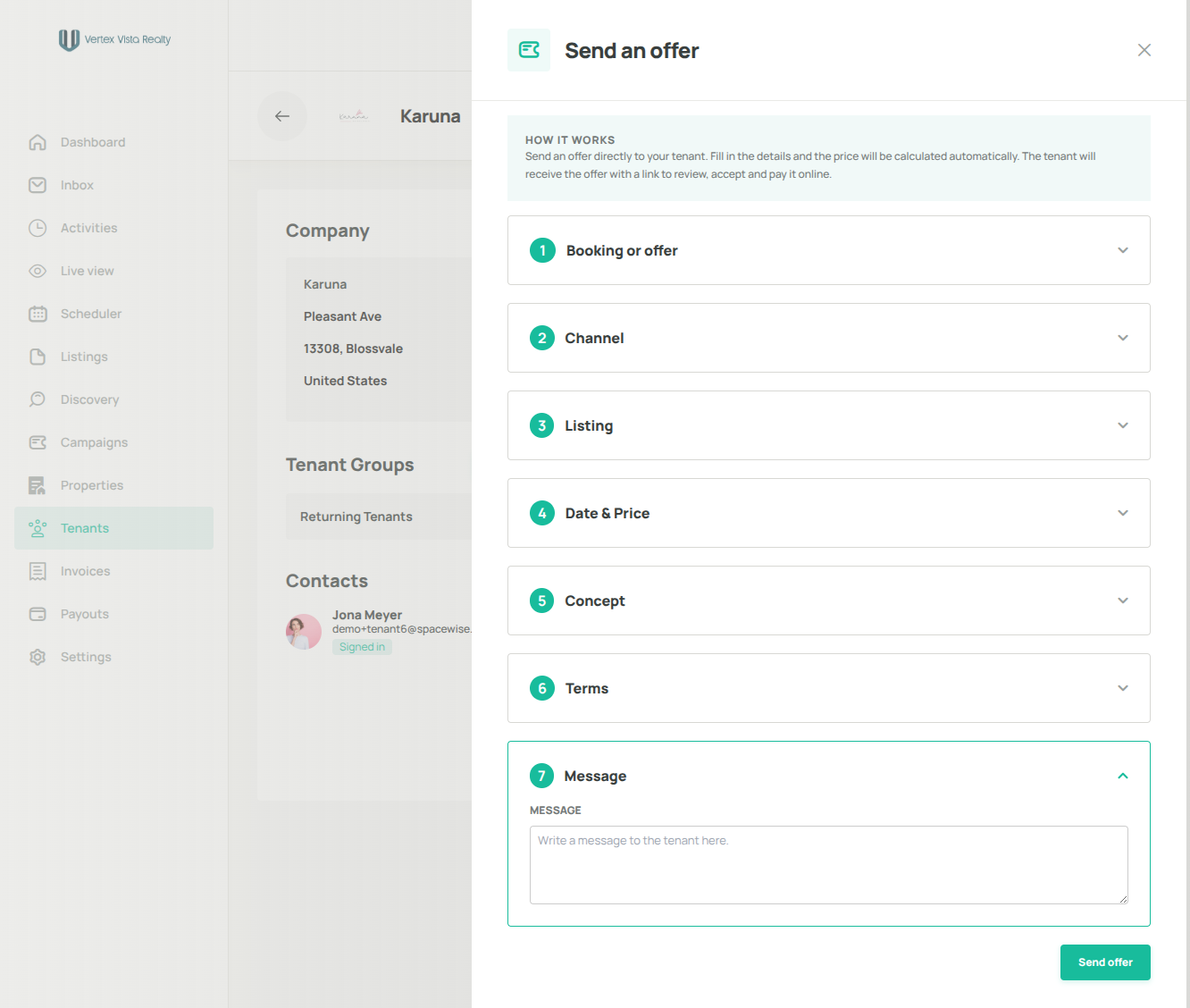
22. Click on Send offer to finalize and send the offer
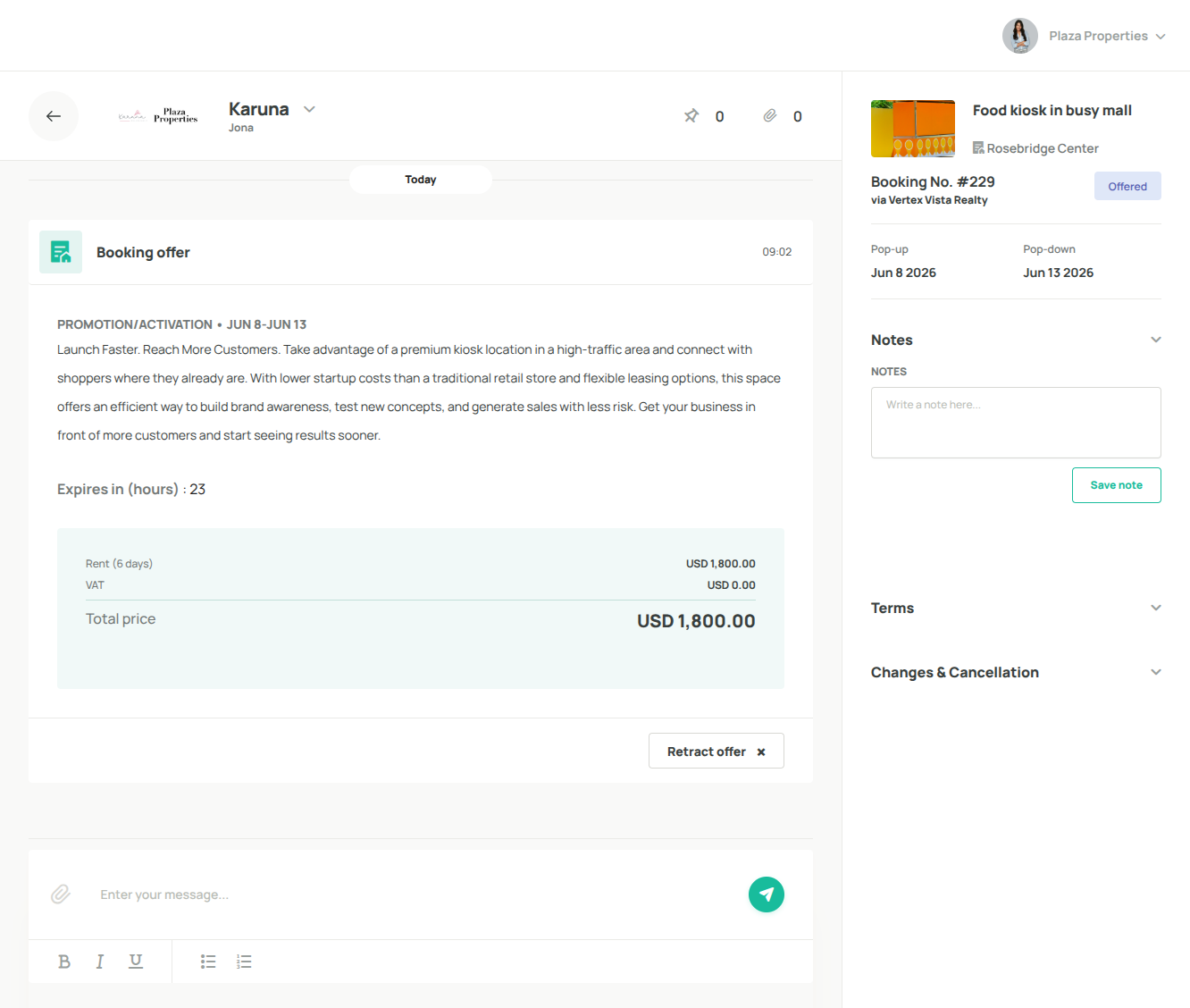
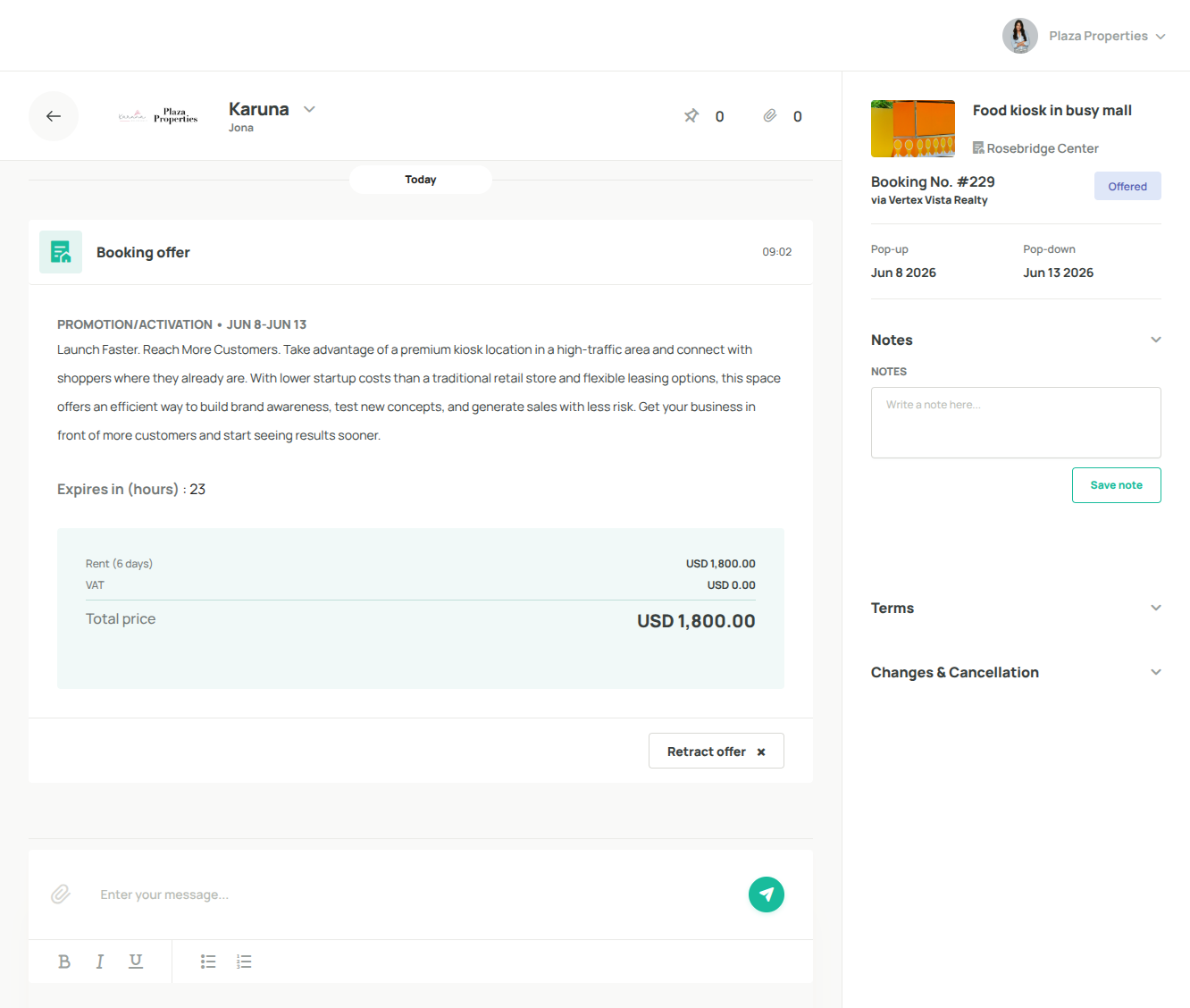
23. You'll be redirected to your message thread with the tenant and it will show your Booking offer
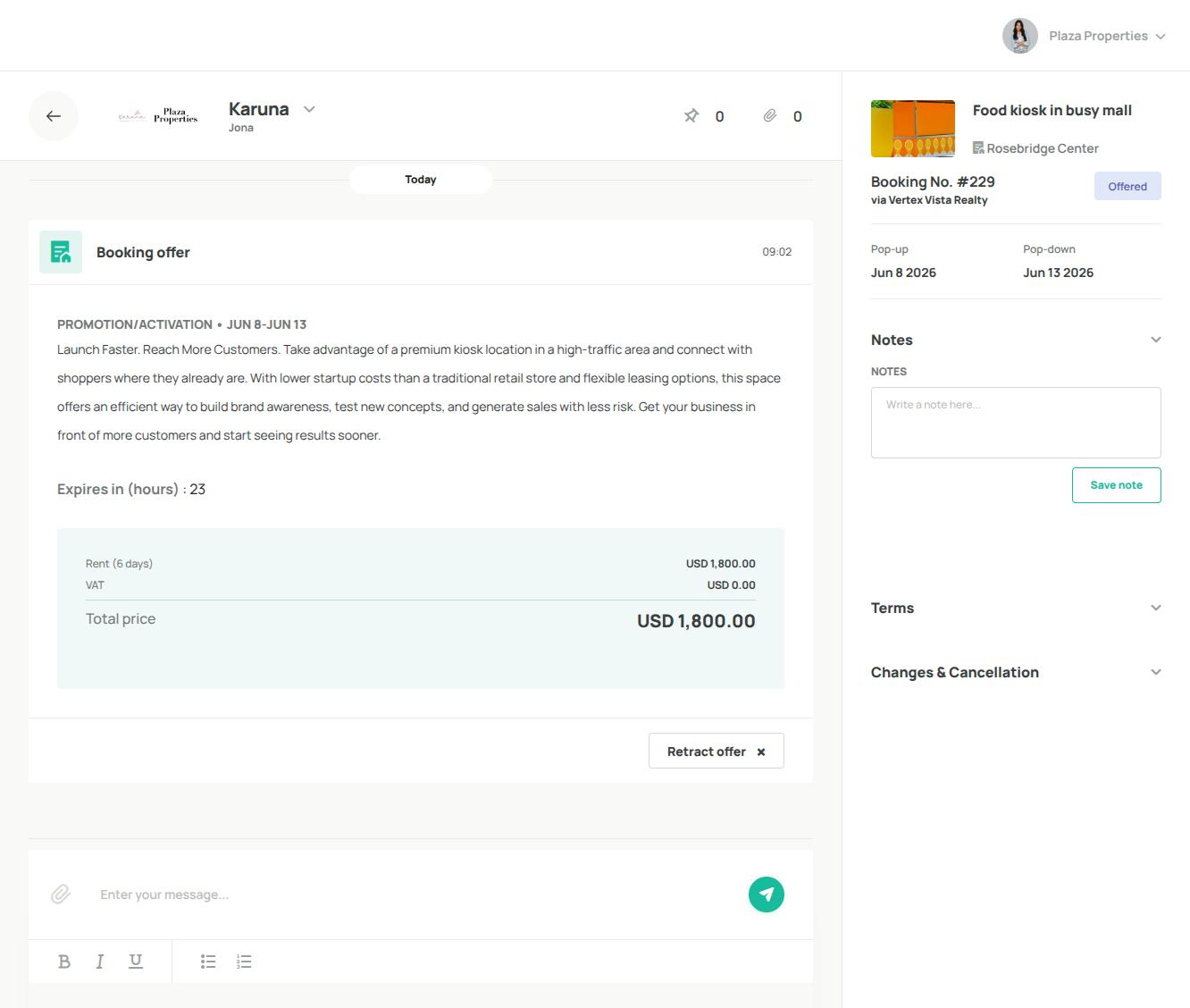
24. Other details are displayed on the right pane.
You can see that the Booking Status now shows as Offered
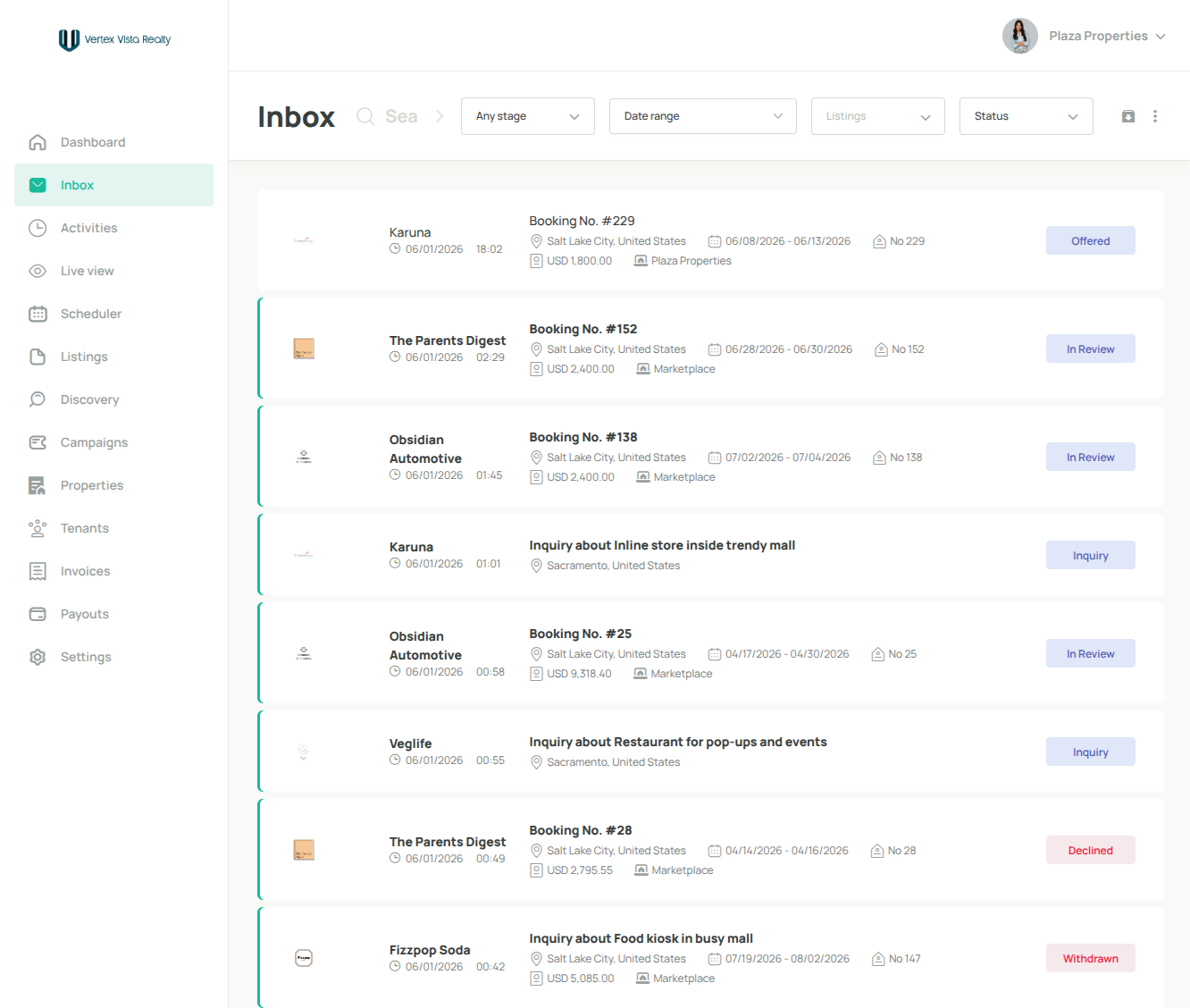
25. Let's go back to the Tenants page
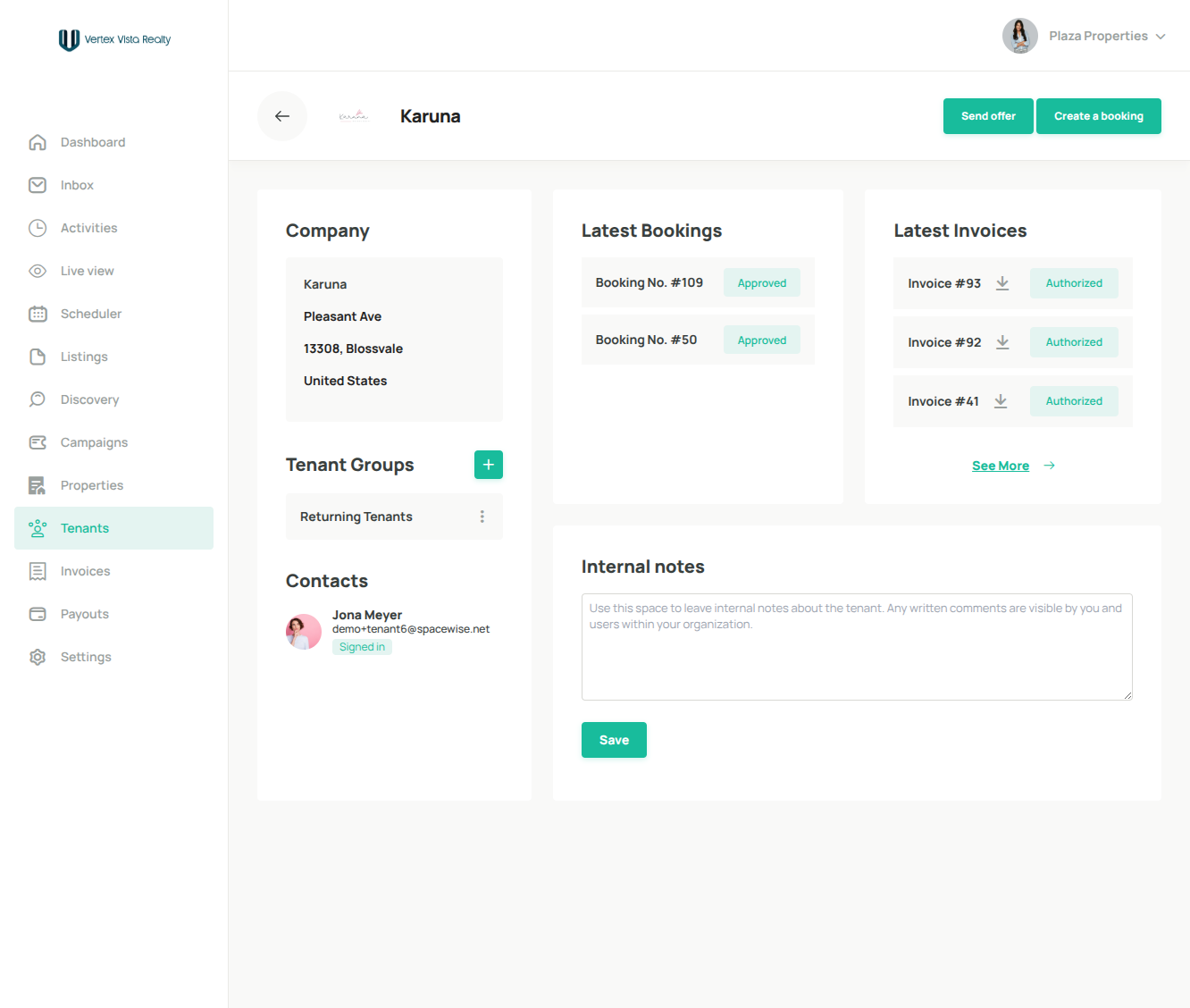
26. Let's go back to the Tenants page and view Karuna tenant once again
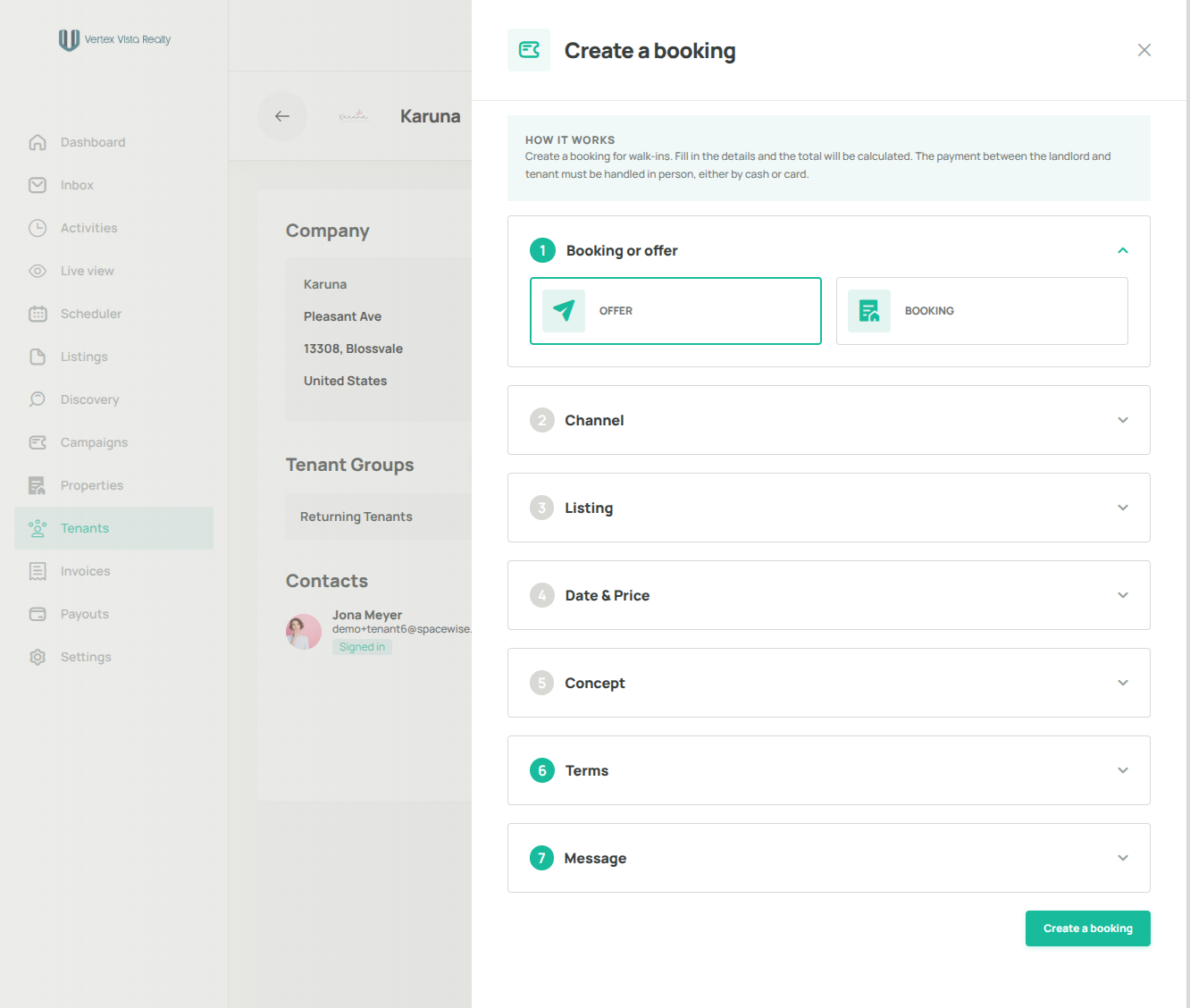
27. Click Create a booking to manually add an existing booking to the platform
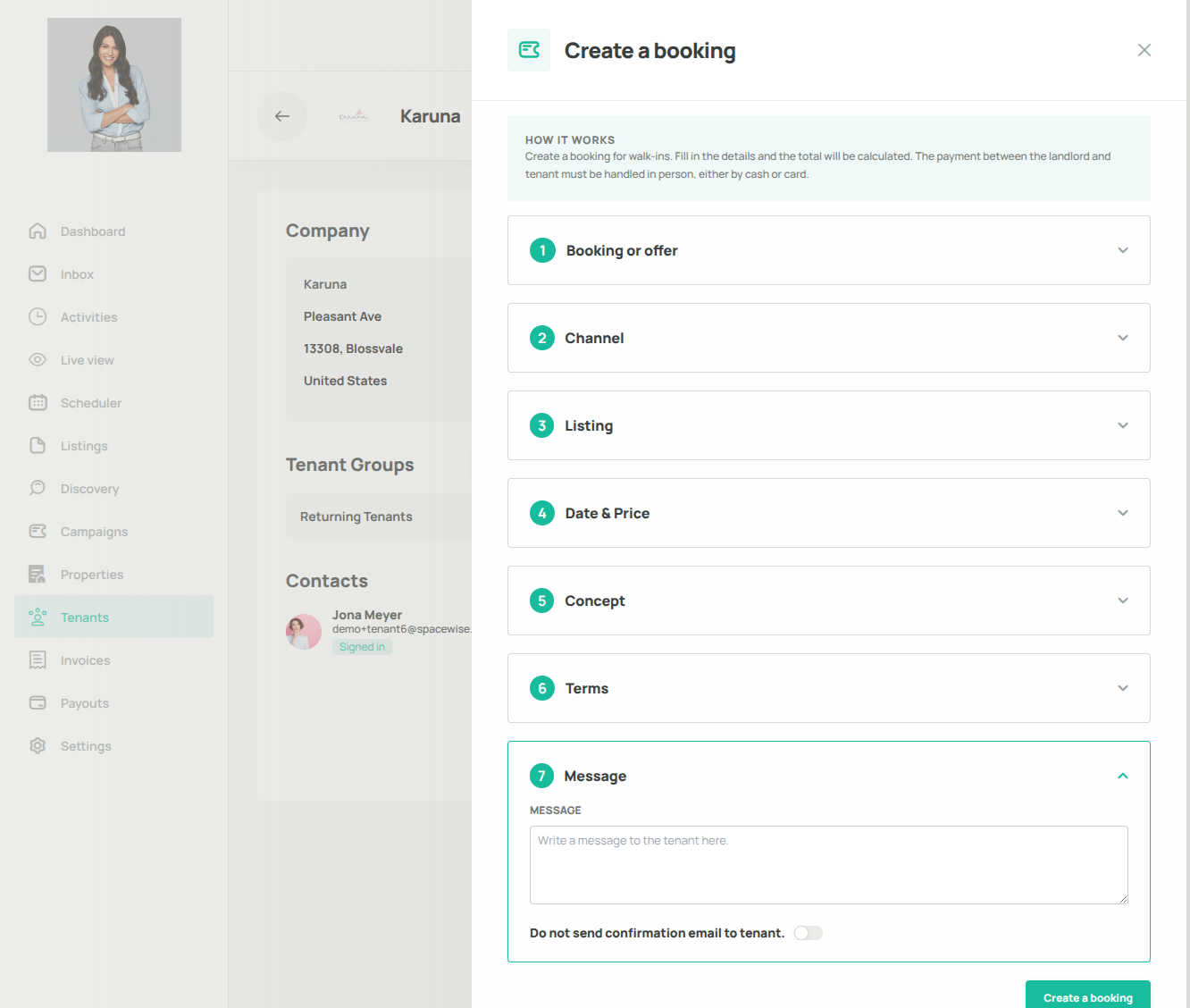
28. Select Booking
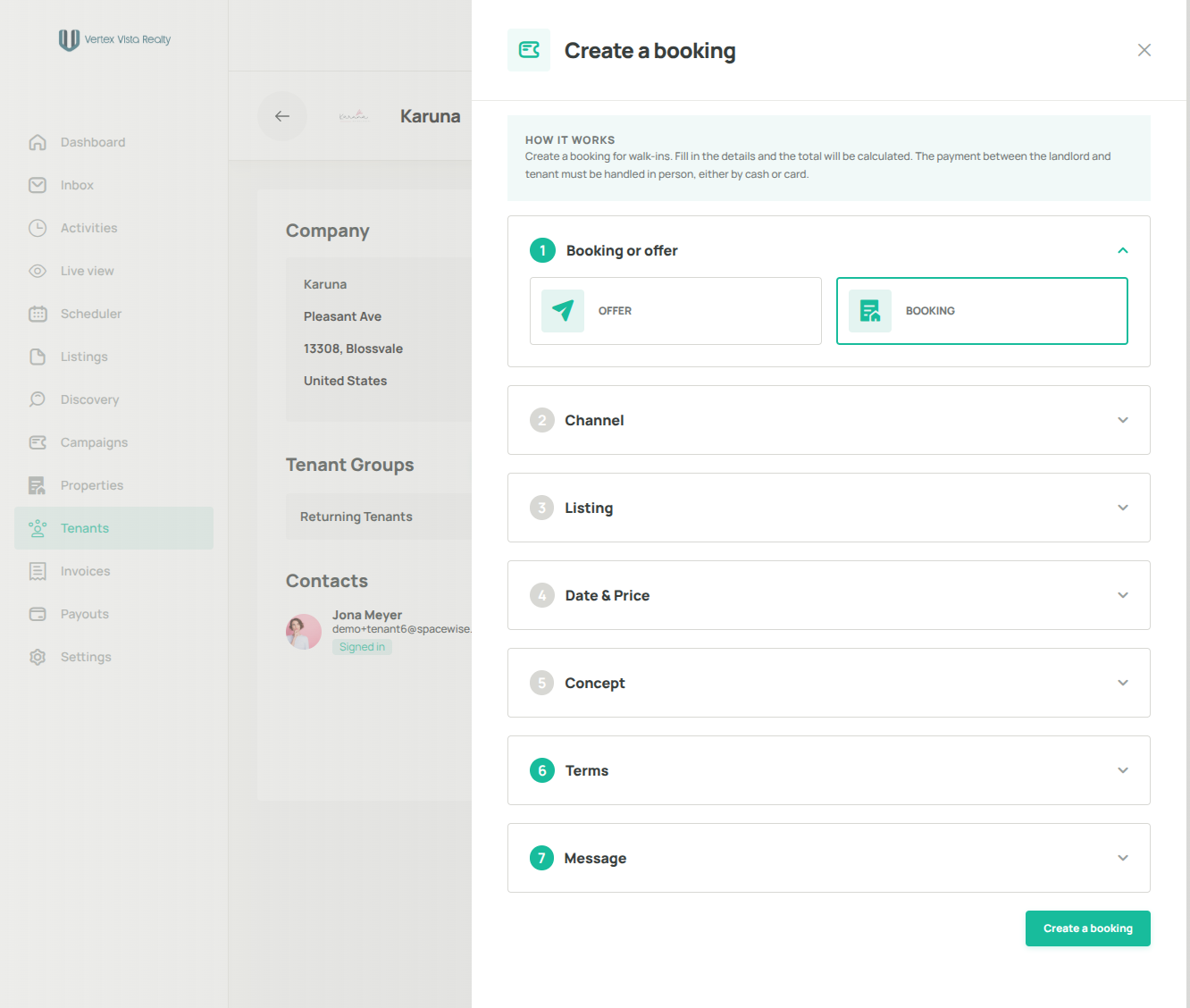
29. Choose a channel
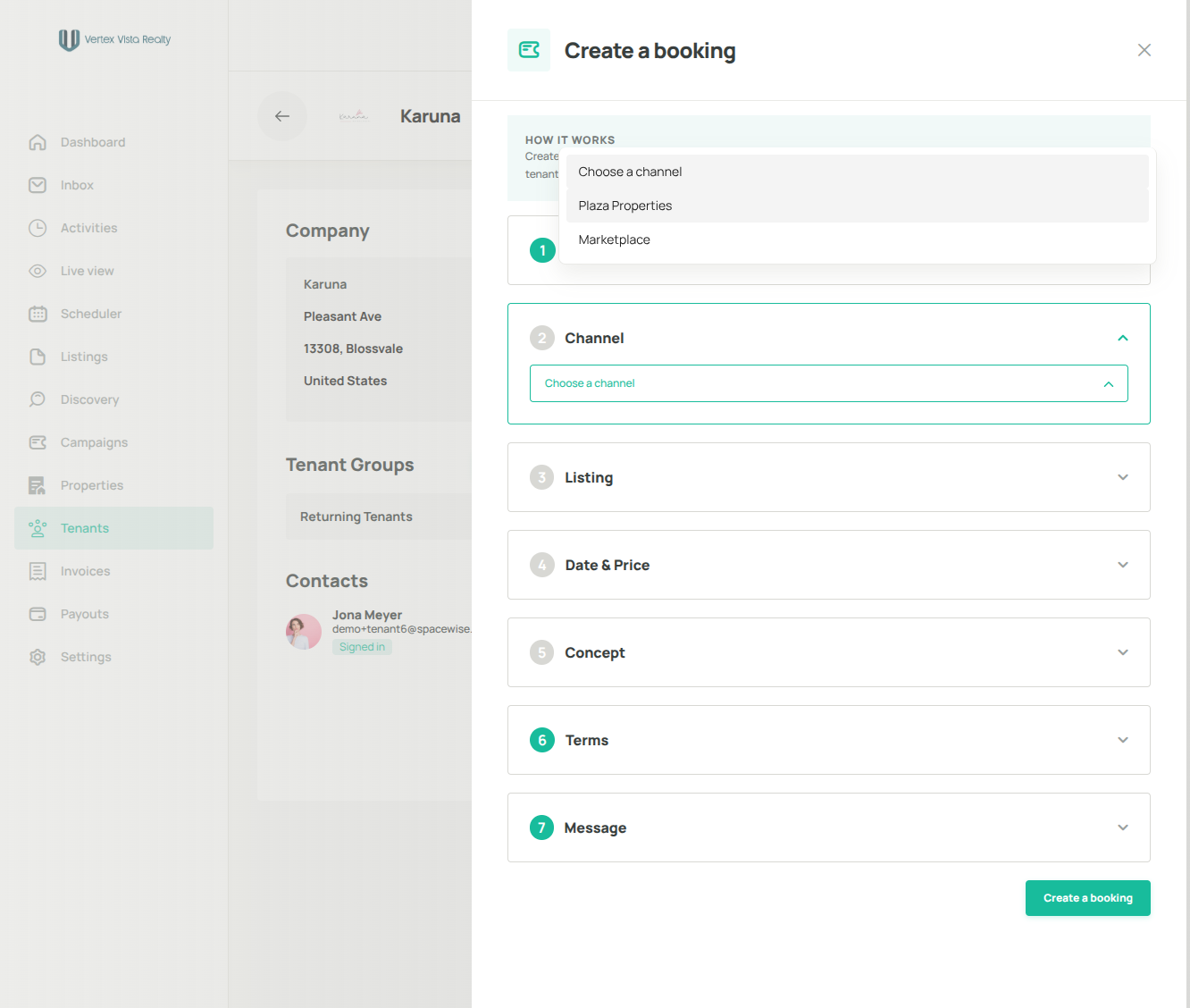
30. Select the listing
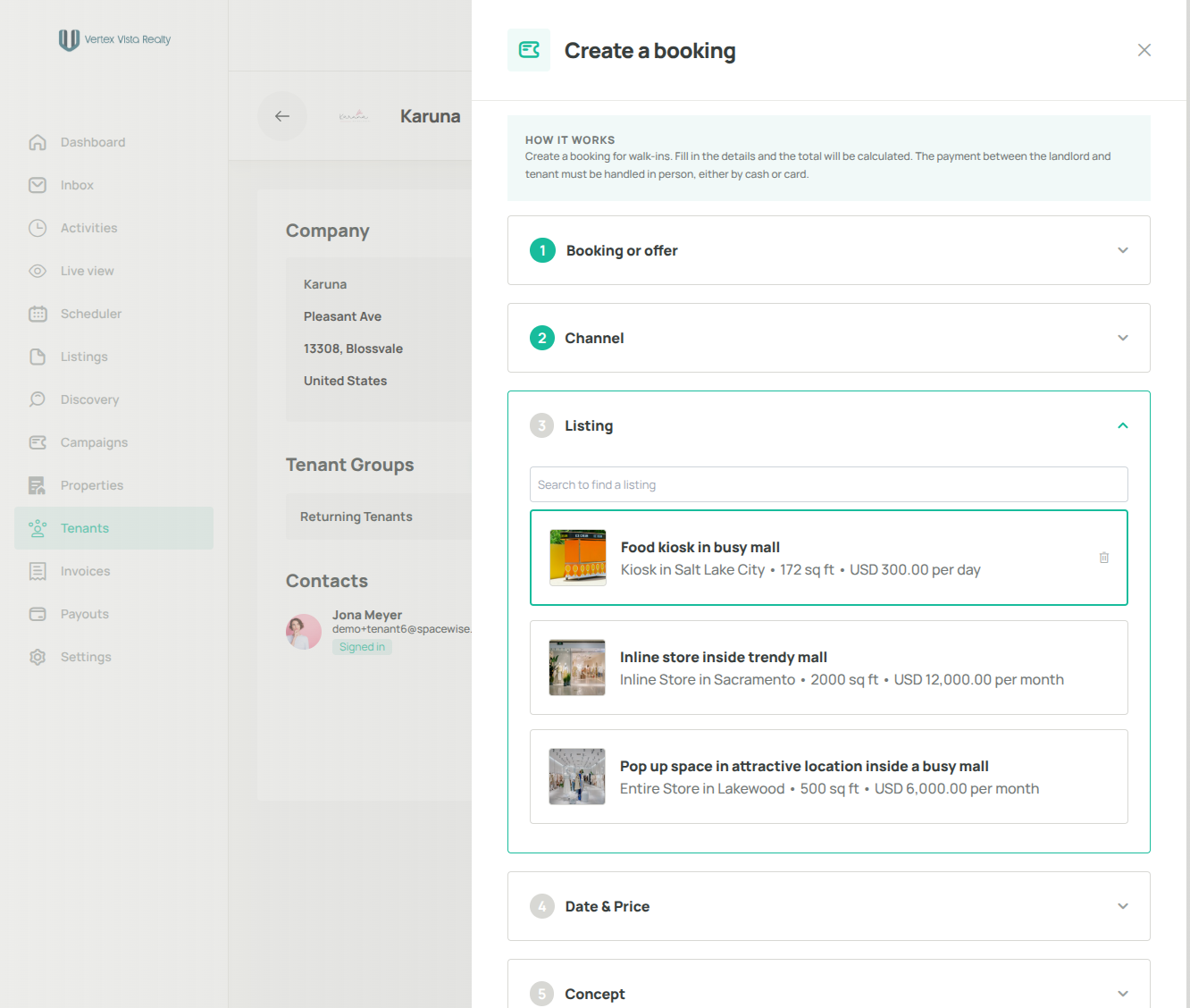
31. Click the date field to pick your booking start and end date
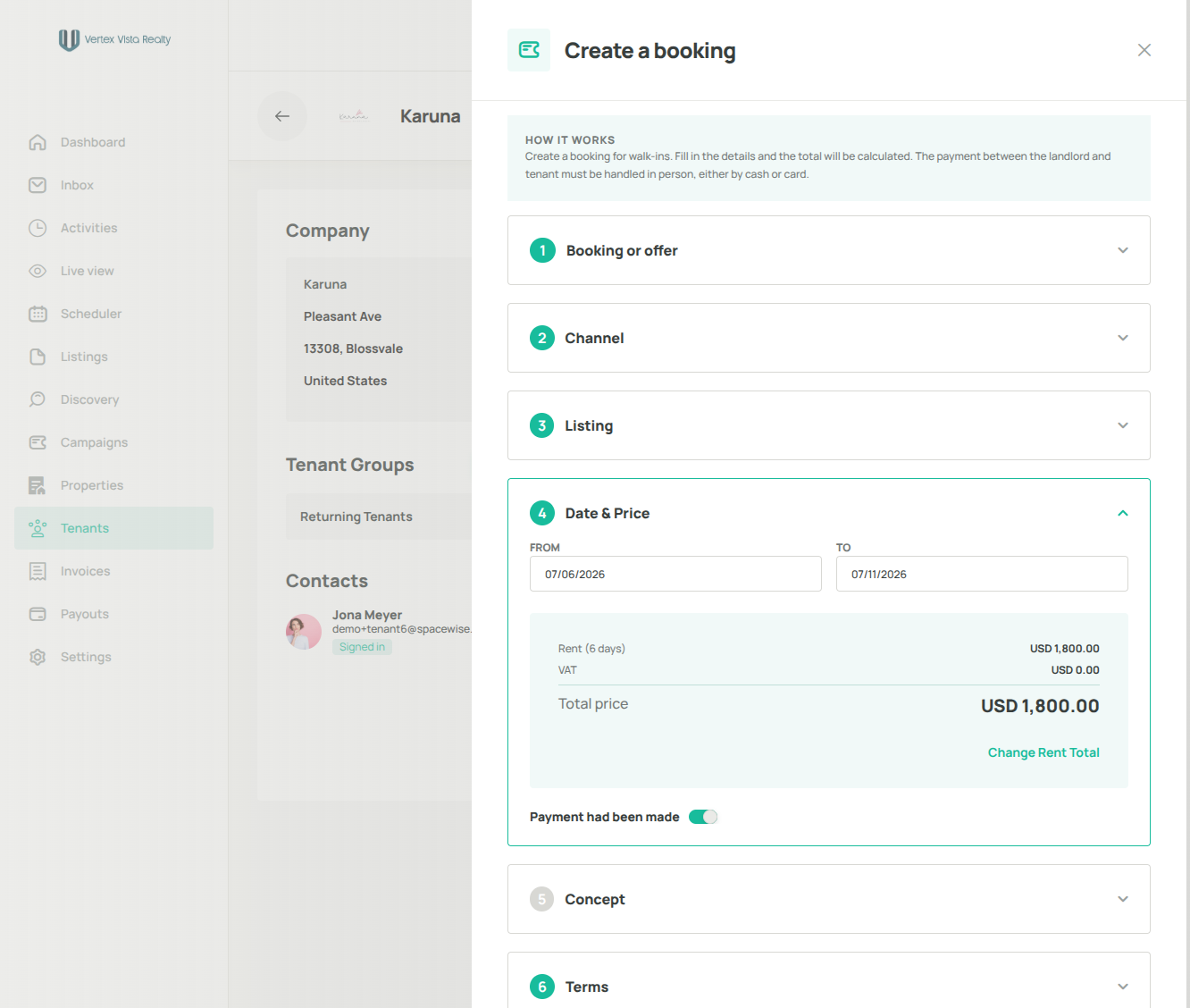
32. Edit your pricing by clicking this Change Rent Total
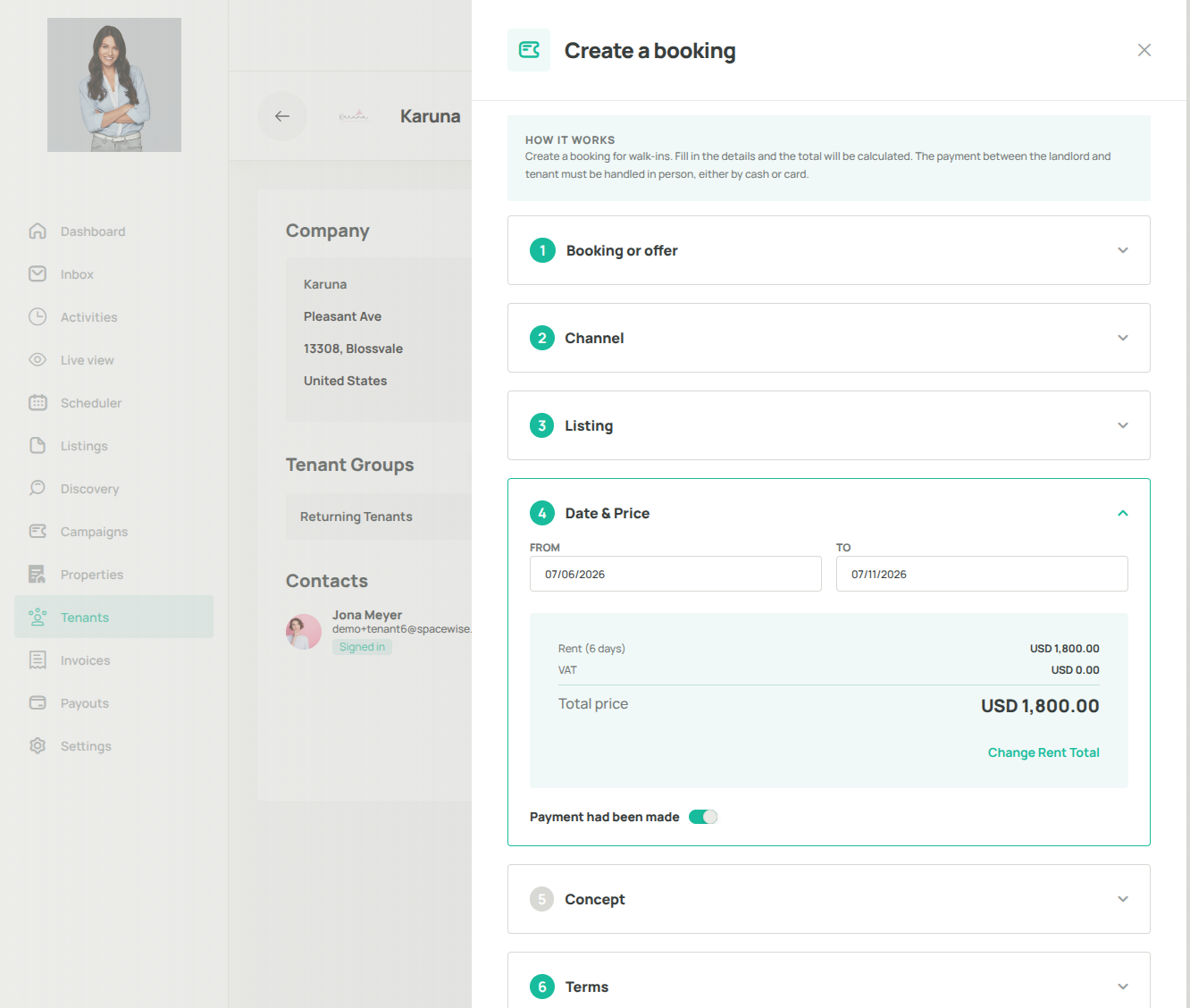
33. Select concept type and fill out the concept description
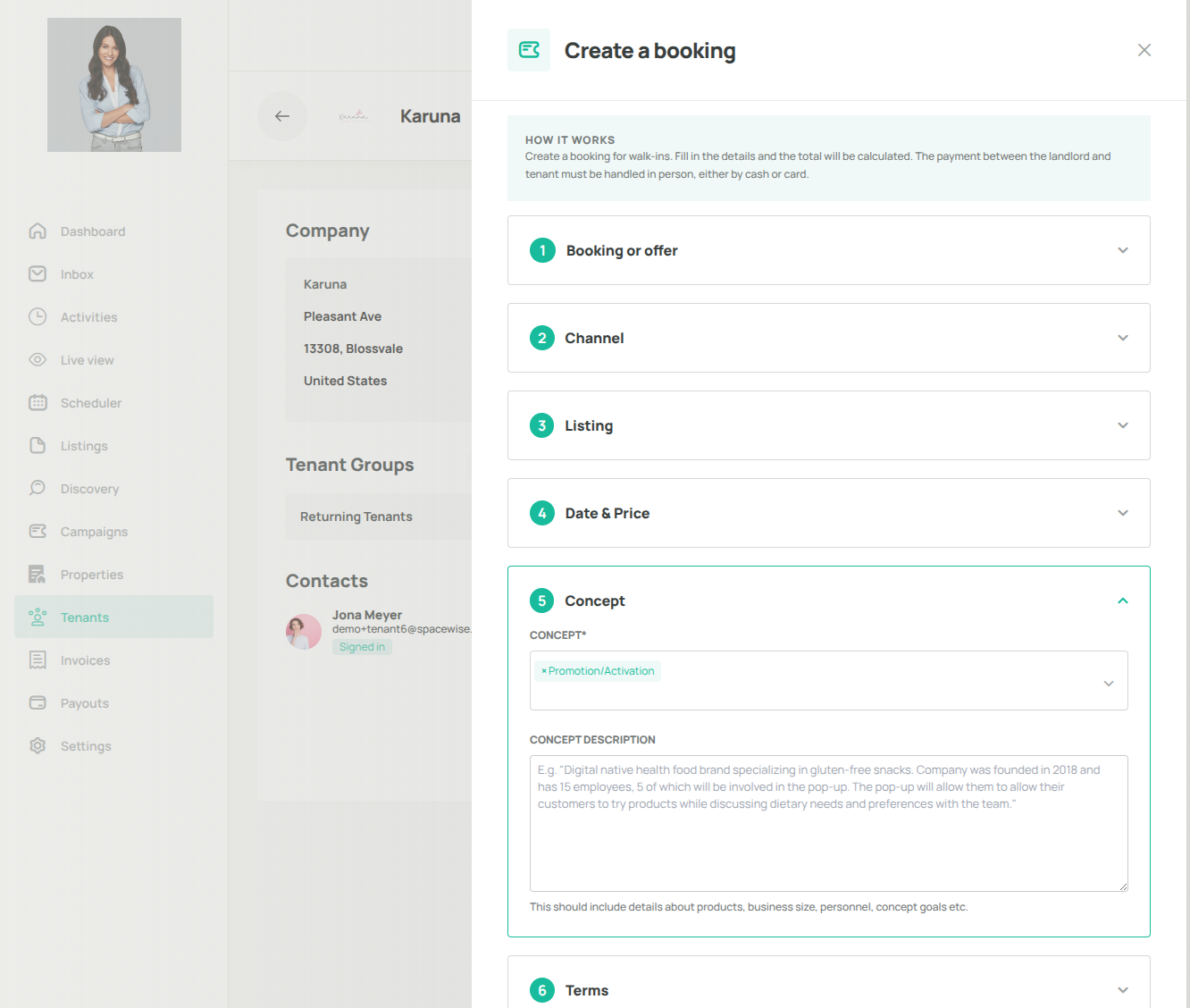
34. Select your cancellation policy type and define your booking terms
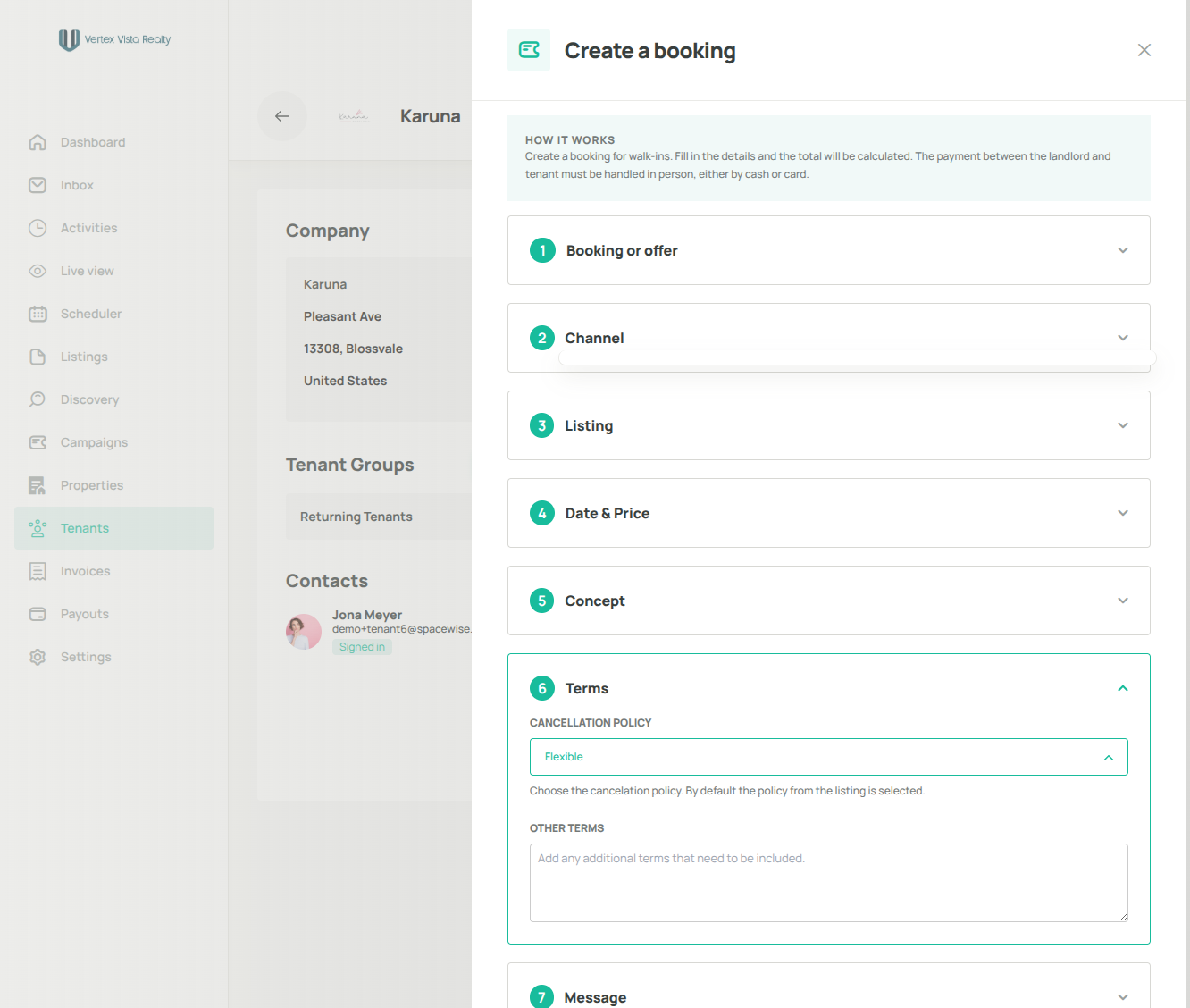
35. Send a personalized message to the tenant so they understand the booking setup
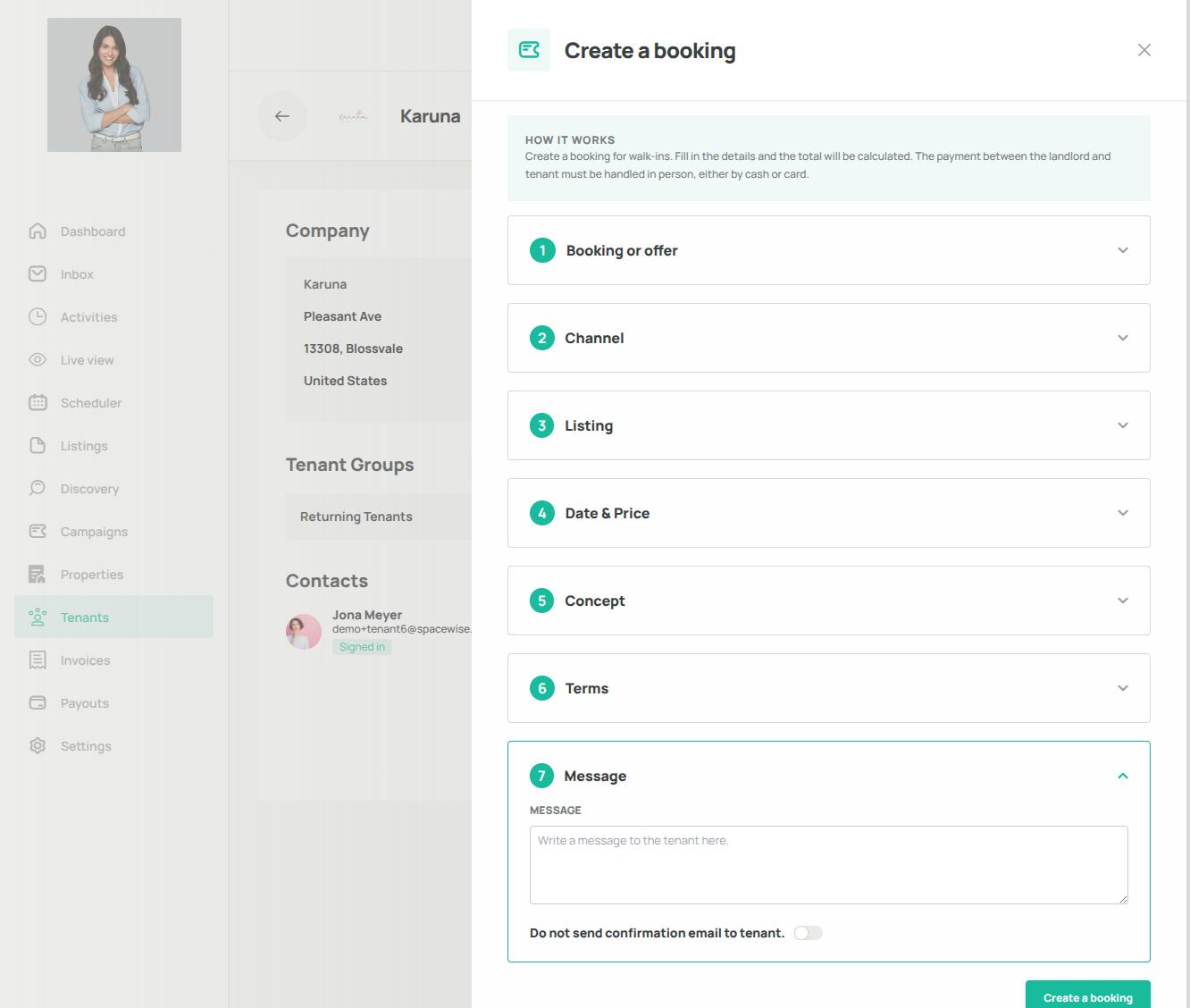
36. All done? Click Create a booking
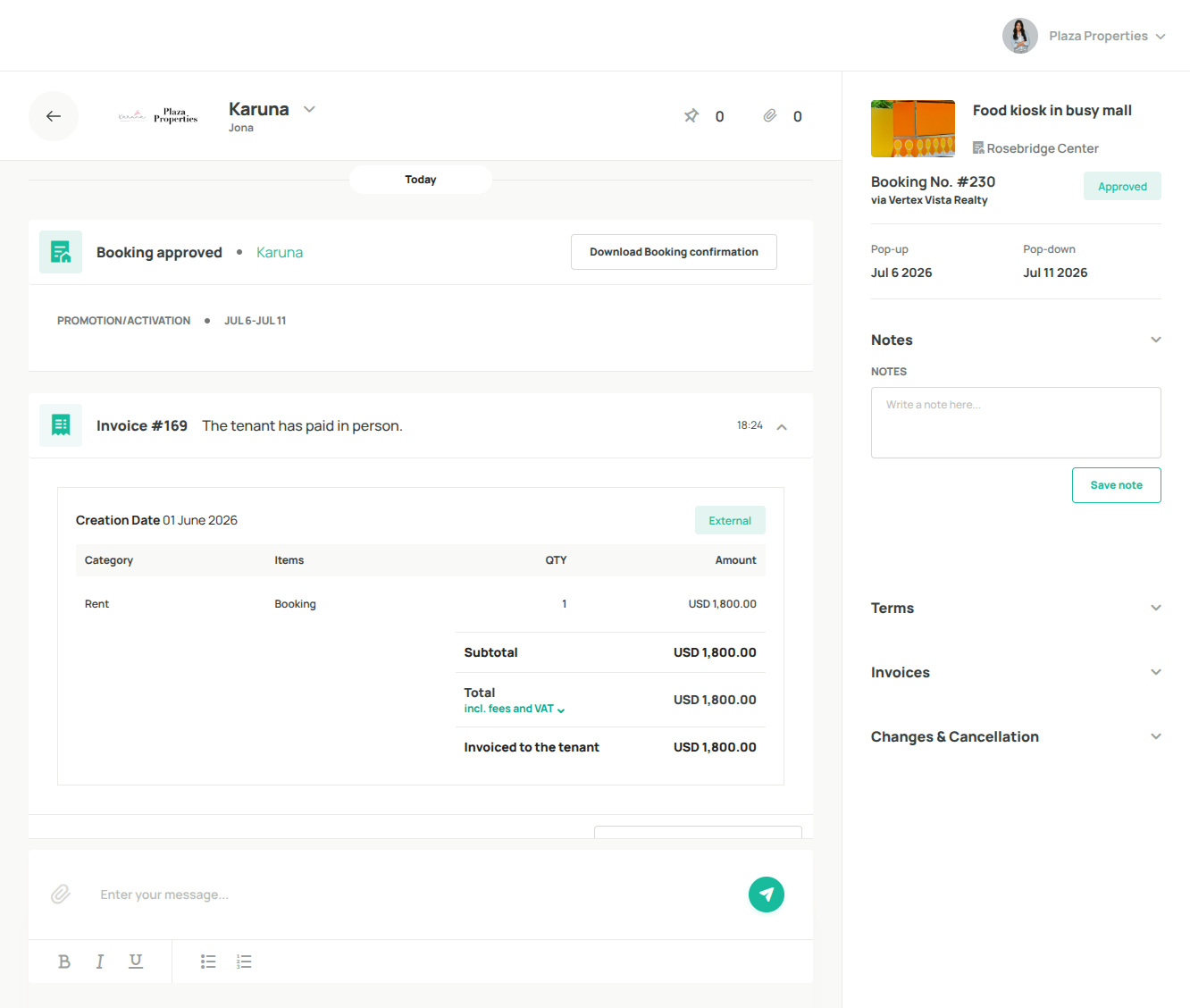
37. You'll see the booking details in your conversation thread
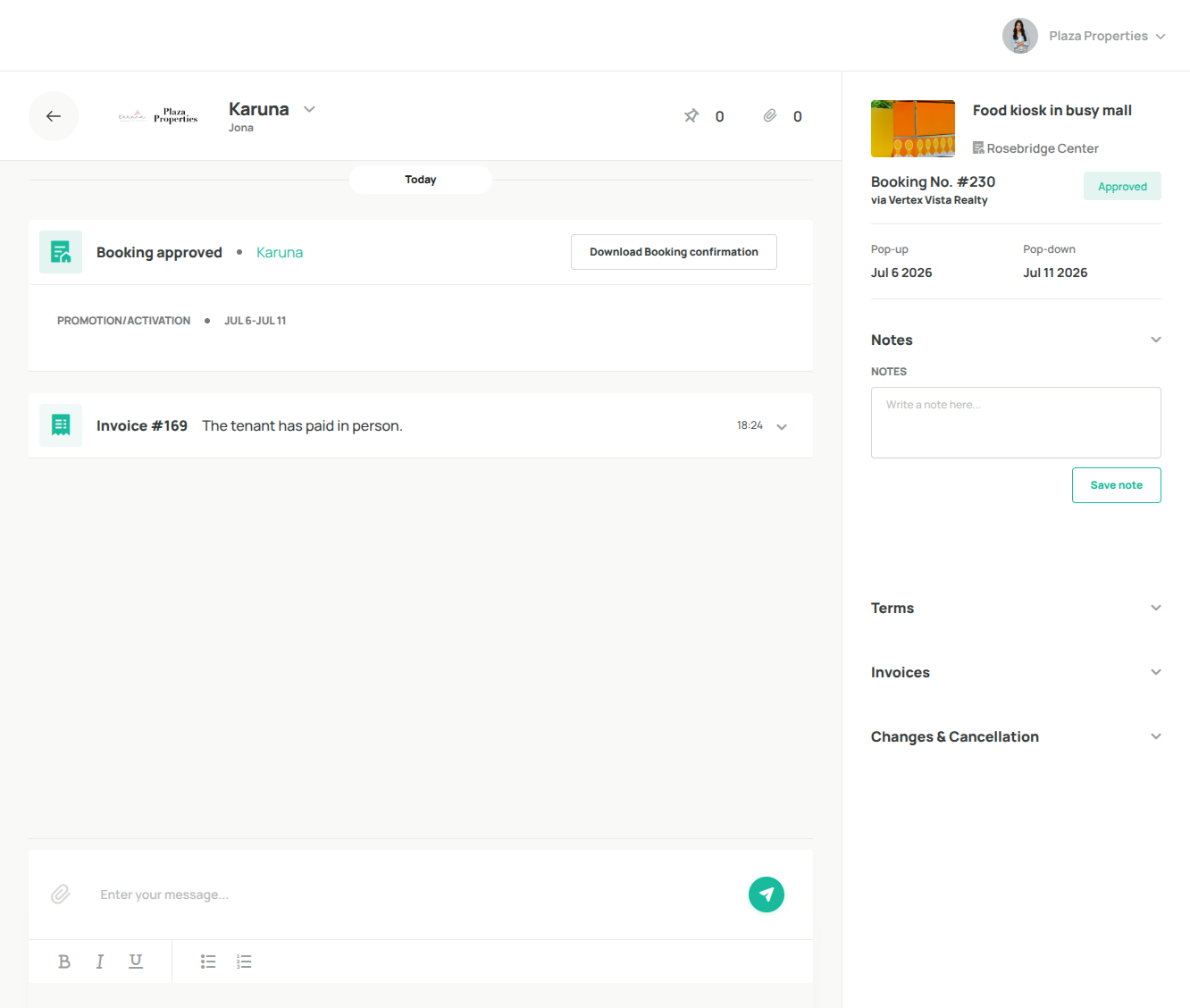
38. You'll see that the booking status now displays as Approved
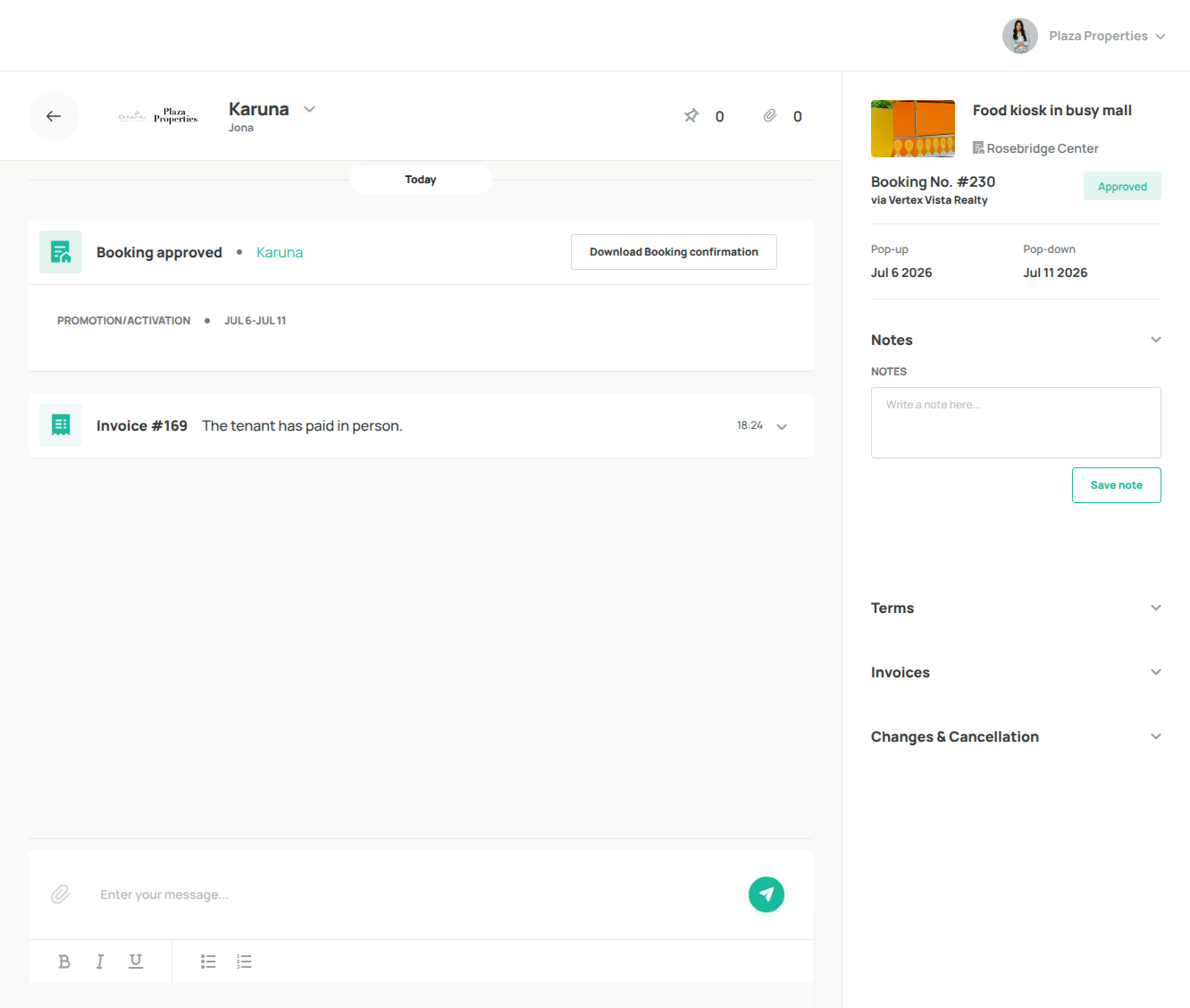
39. Download the booking details here
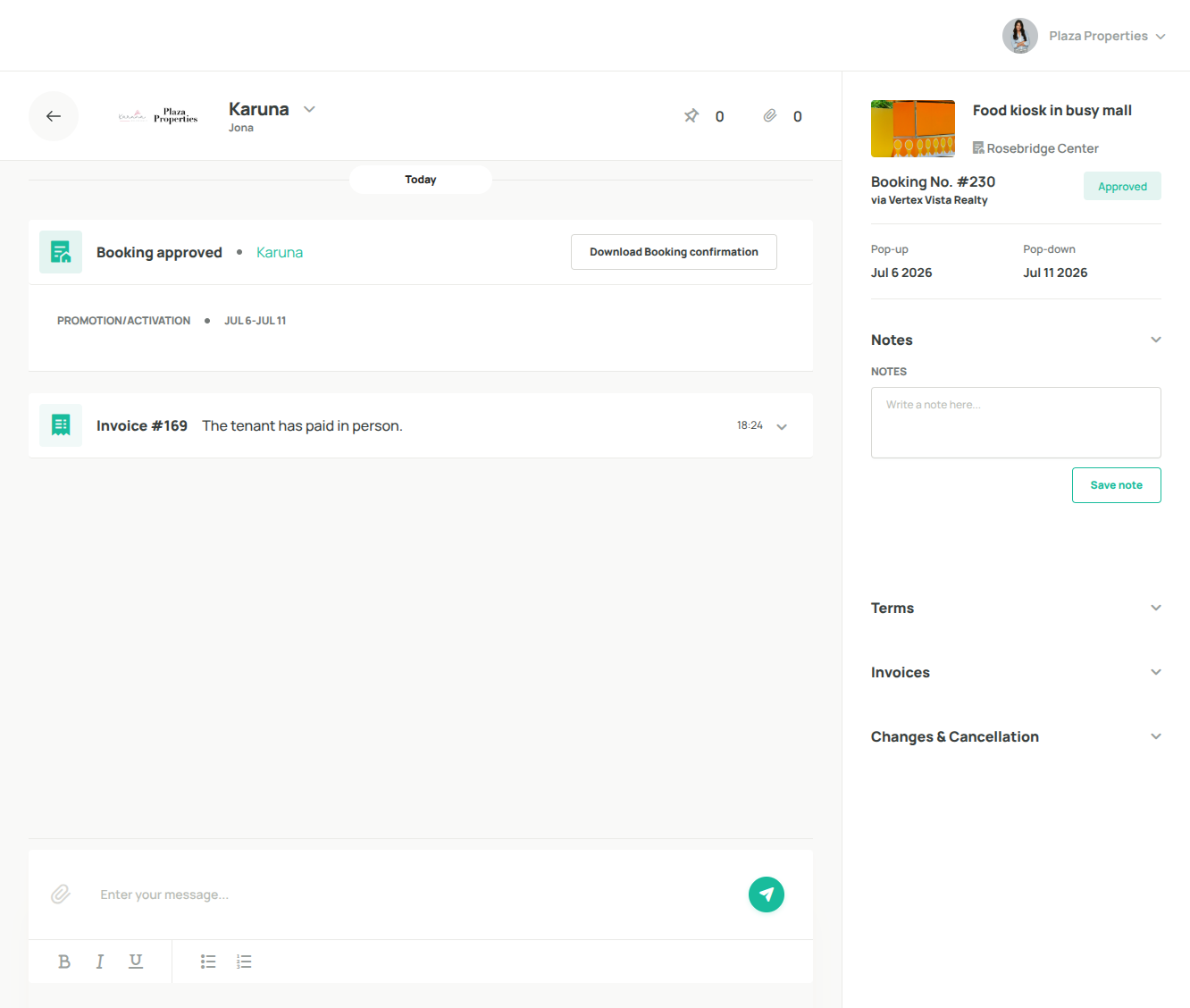
40. Tenant Dashboard Overview Complete
You now know how to navigate the Tenant Dashboard and access the tools needed to manage your entire leasing journey.
Was this article helpful?
That’s Great!
Thank you for your feedback
Sorry! We couldn't be helpful
Thank you for your feedback
Feedback sent
We appreciate your effort and will try to fix the article